
How to Use Procore Integration for monday.com
Installation Instructions
To install the Procore Integration app, follow these steps:
- Follow the installation link or search for the app in the marketplace.
- Install the app.

Prerequisites
- A valid monday.com account.
- Basic understanding of how to navigate and use monday.com.
- A valid Procore account.
Please ensure you meet these prerequisites before proceeding with the installation of the Procore Integration app.
First Time Use Instructions
To get started with the Procore Integration app, follow these steps:
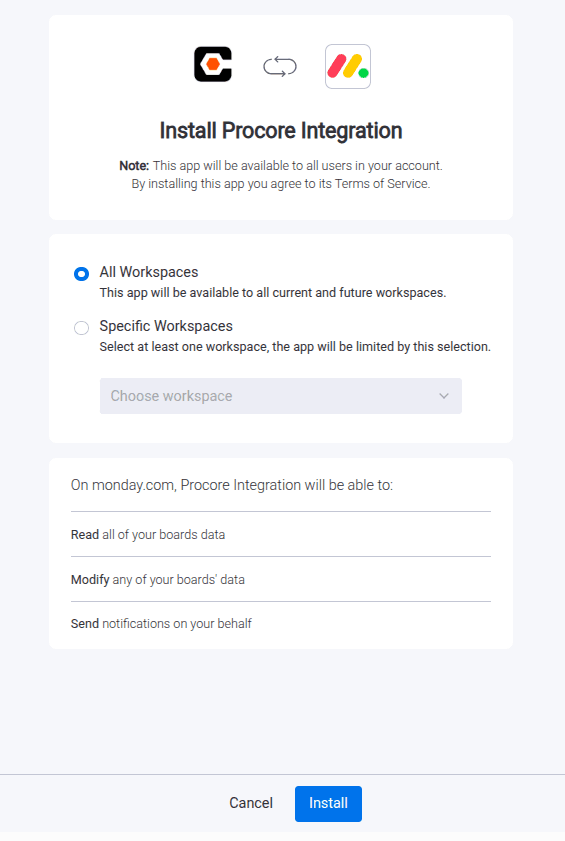
- Install the app from the monday.com Marketplace, or click the Add to monday button above.
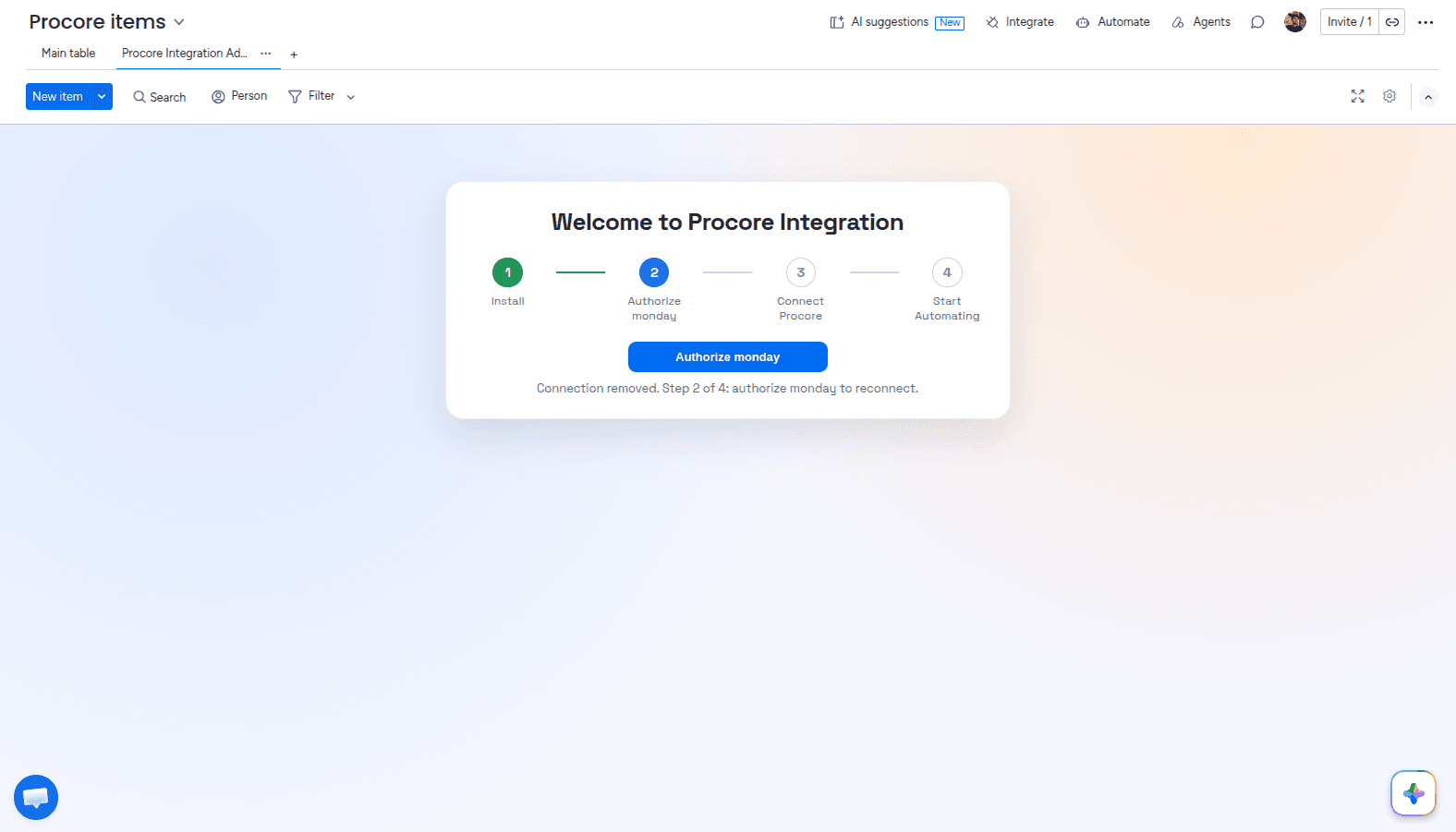
- After installing the app, you will be redirected to the Admin UI, where you can configure it and connect your Procore account. First, authorize monday.com. Click the Authorize monday button to open the monday.com authorization pop-up. After you authorize monday.com, you will be redirected back to the Admin UI.
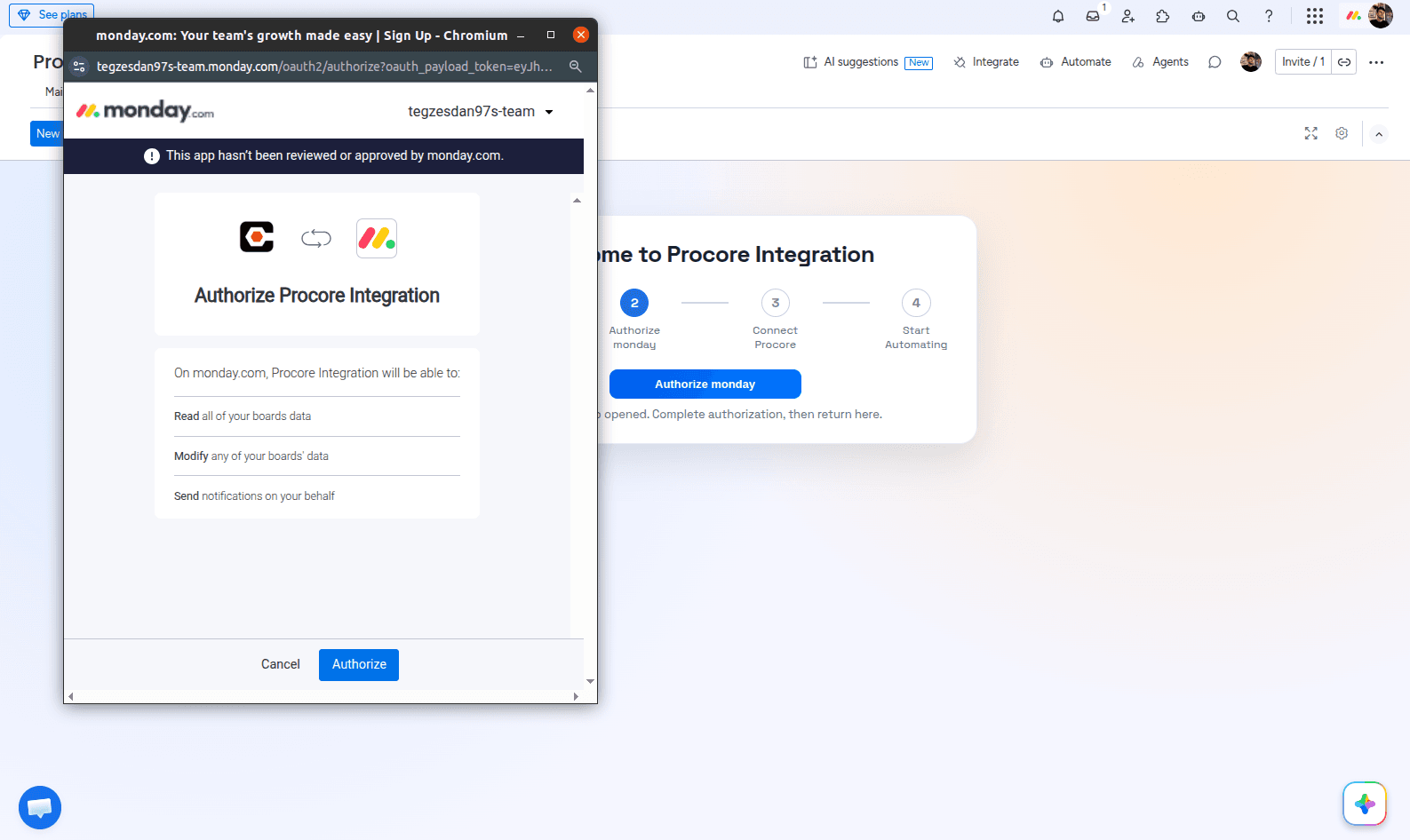
- In the monday.com authorization pop-up, click the Authorize button.
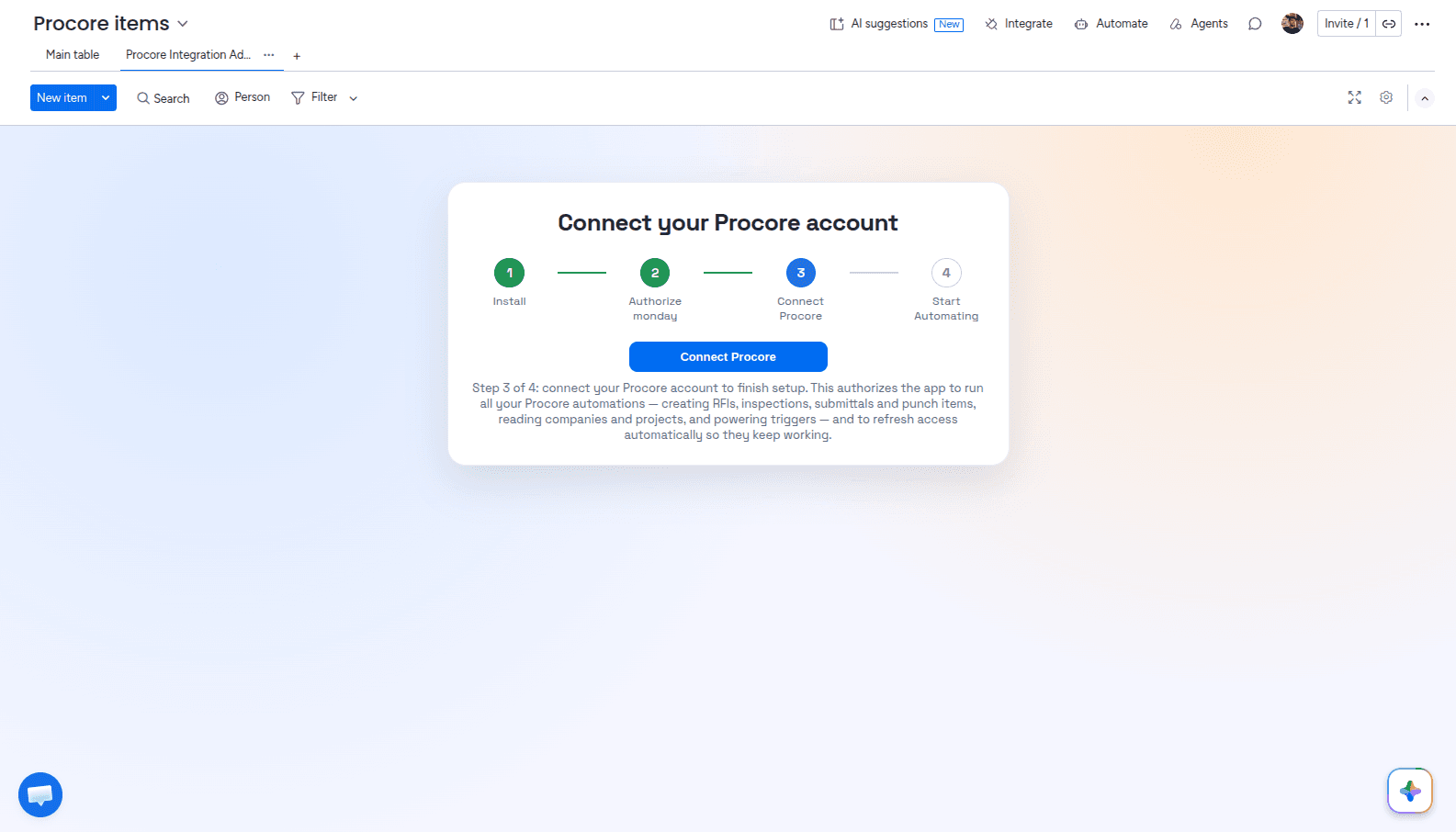
- Next, authorize Procore. Click the Connect Procore button to open the Procore authorization page. After you authorize Procore, you will be redirected back to the Admin UI.
- You should now see the Admin page, where you can find Connections, Plan Usage, Automation Operations History, and the Support section in the bottom-left corner. You can also disconnect your Procore and monday.com accounts by clicking the Disconnect Connection button.
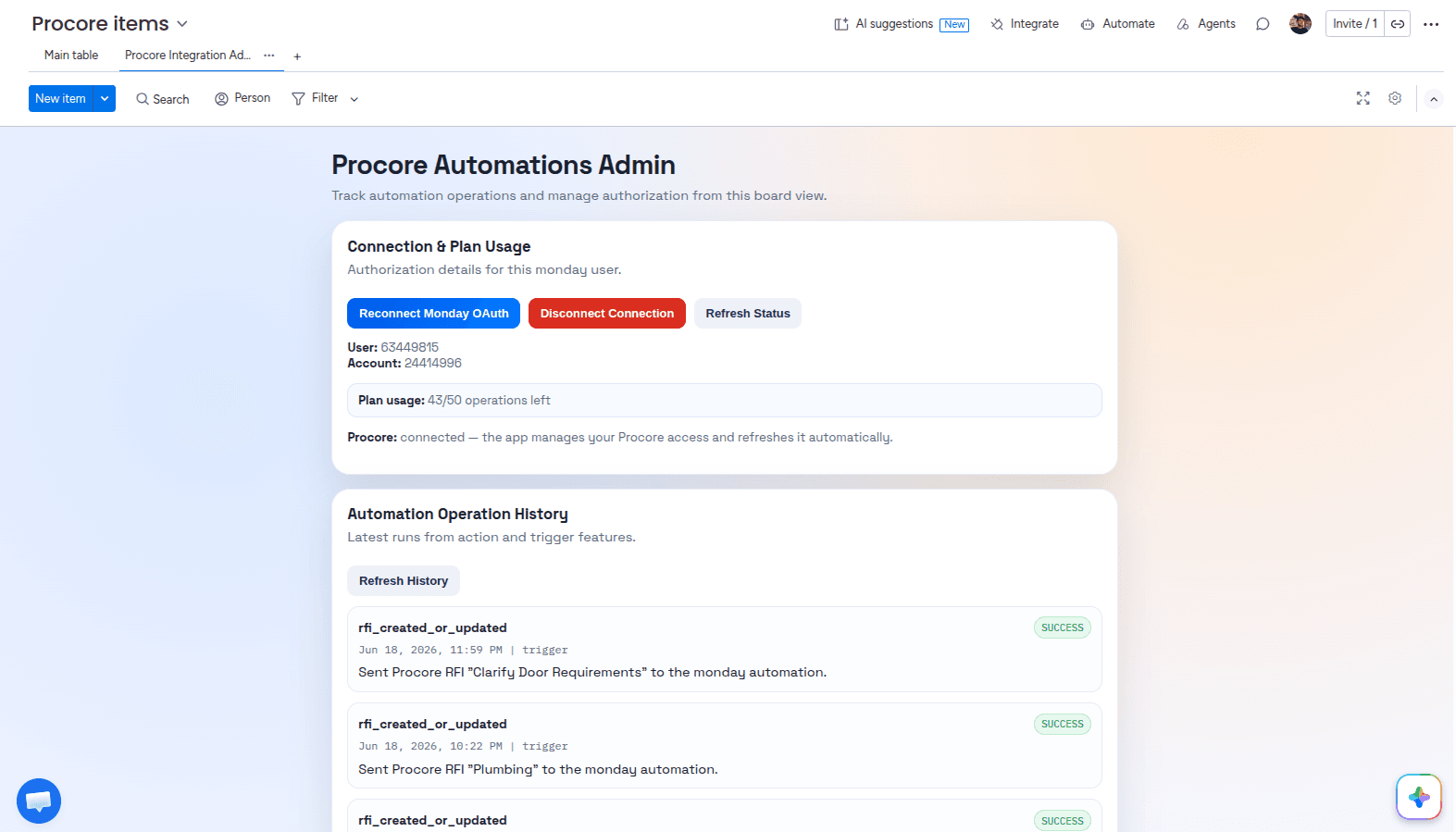
- Now let's build an automation. You can do this either in a workflow or in a board's Automations section. The steps are similar in both cases, but first we'll show the workflow method.
Start a new workflow and add a Procore trigger. You can find the trigger by searching for it in the Triggers section. No additional configuration is required for this trigger.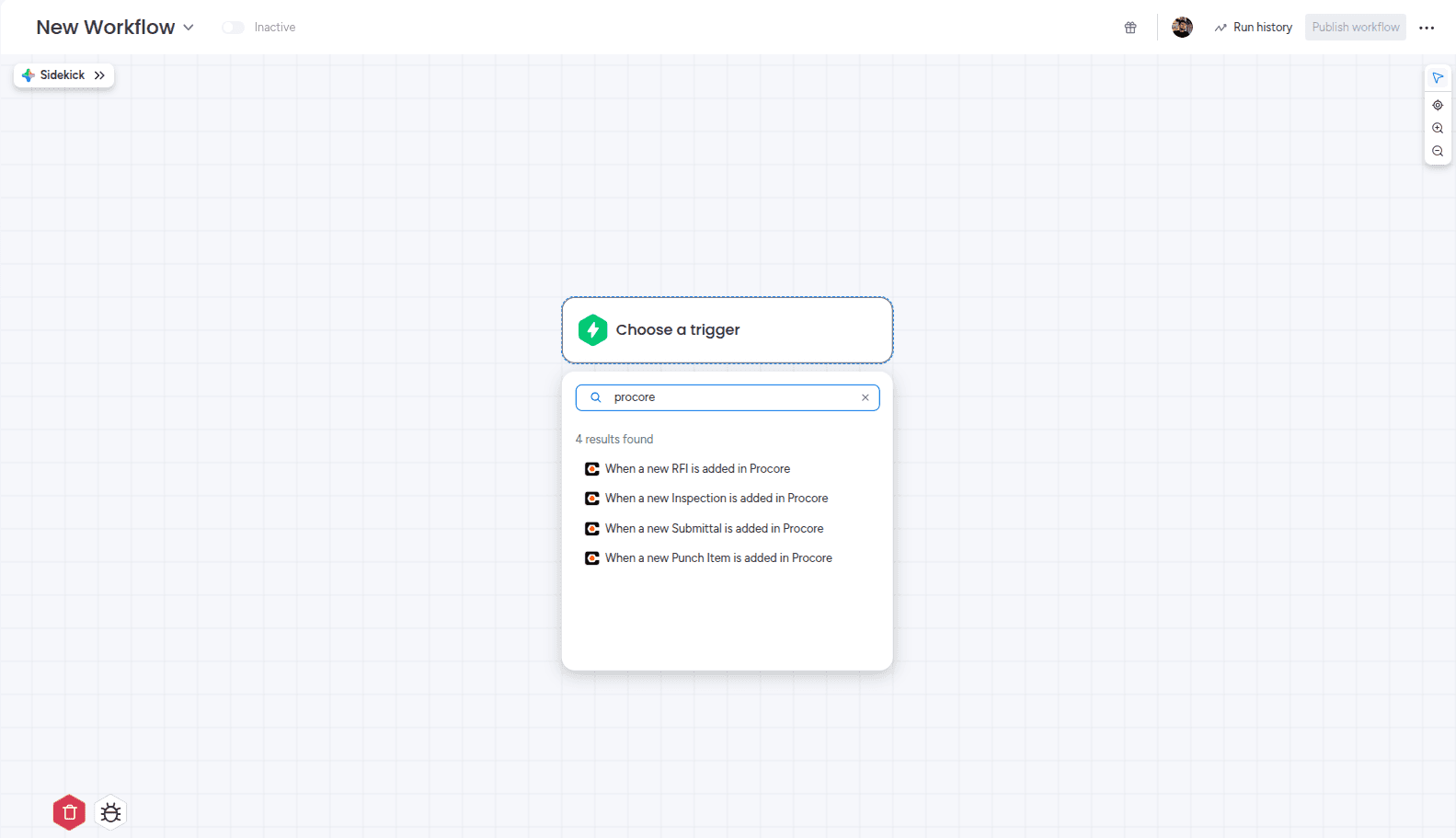
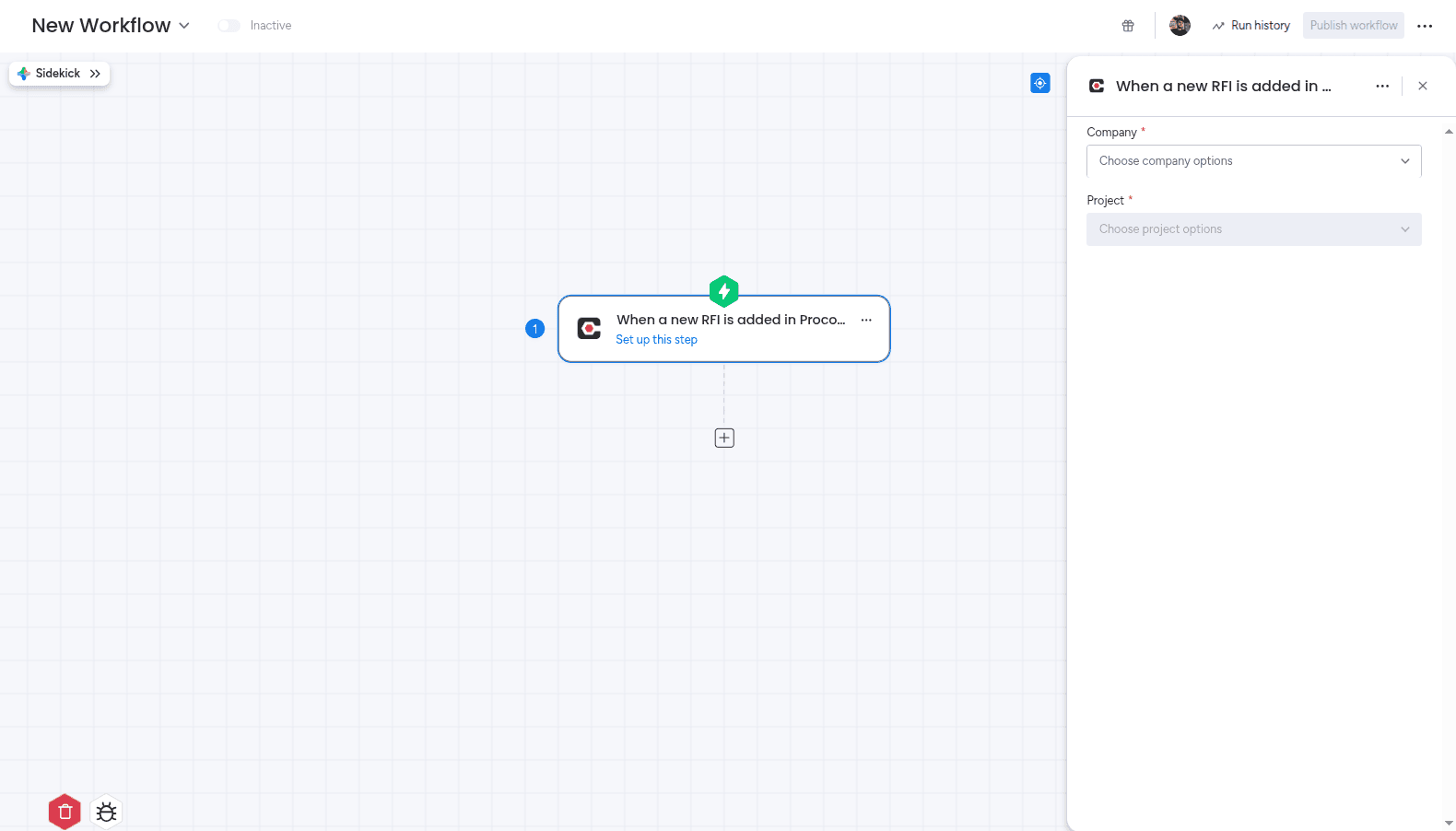
- After adding the trigger, you can add the action to your workflow. You can find the action by searching for it in the Actions section (for example, "Create item"). Once you add the action, choose a board and map the Procore fields from the trigger.
For now, the app maps Procore data only to monday.com text columns, so make sure the destination columns in your board are text columns when configuring the action.
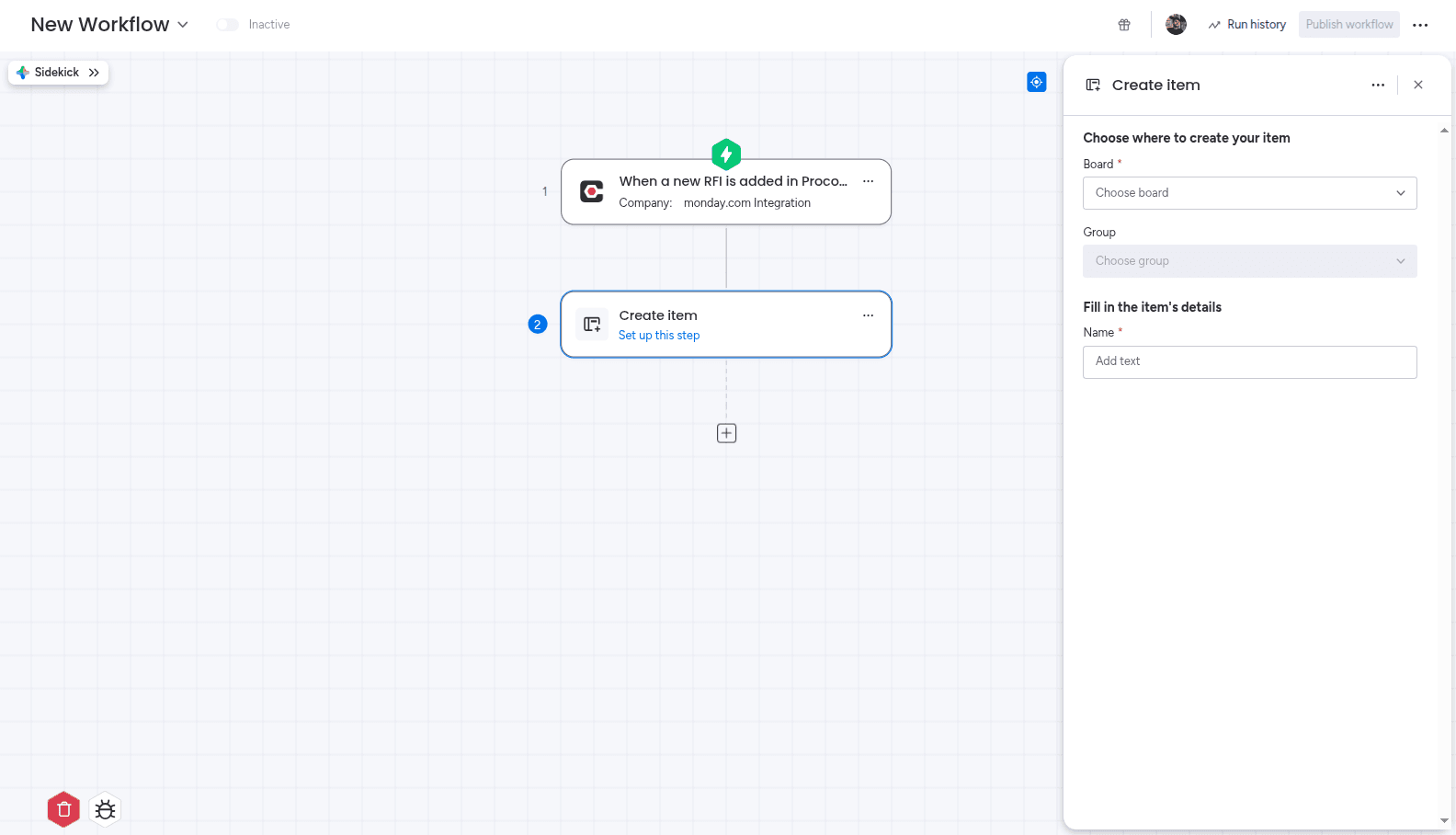
- After choosing the board, map its columns to Procore-specific fields. The values from these fields will be used when creating your items. For now, the app supports mapping these values only into monday.com text columns. After you finish configuring the workflow, click "Publish workflow" to activate it.
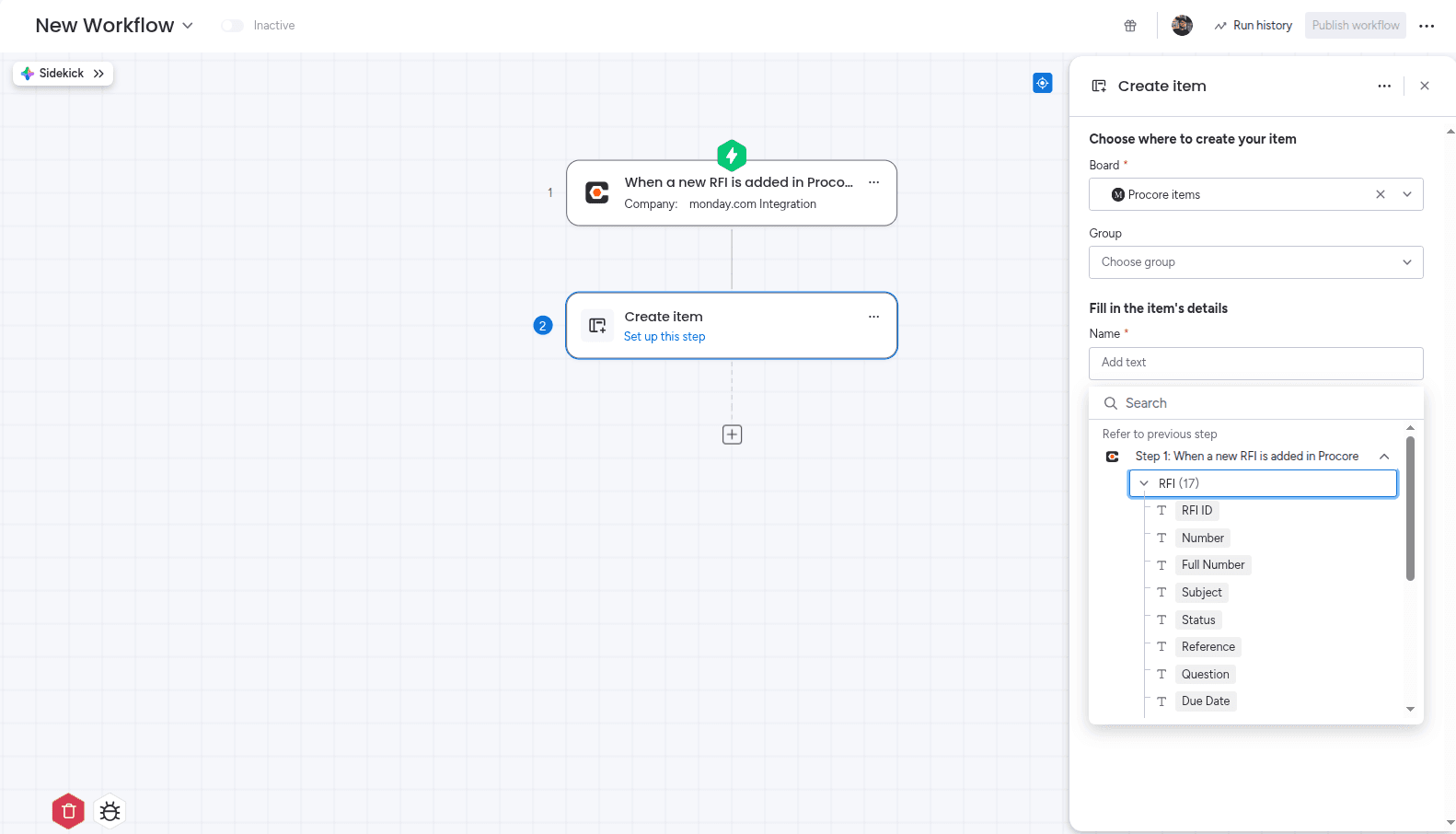
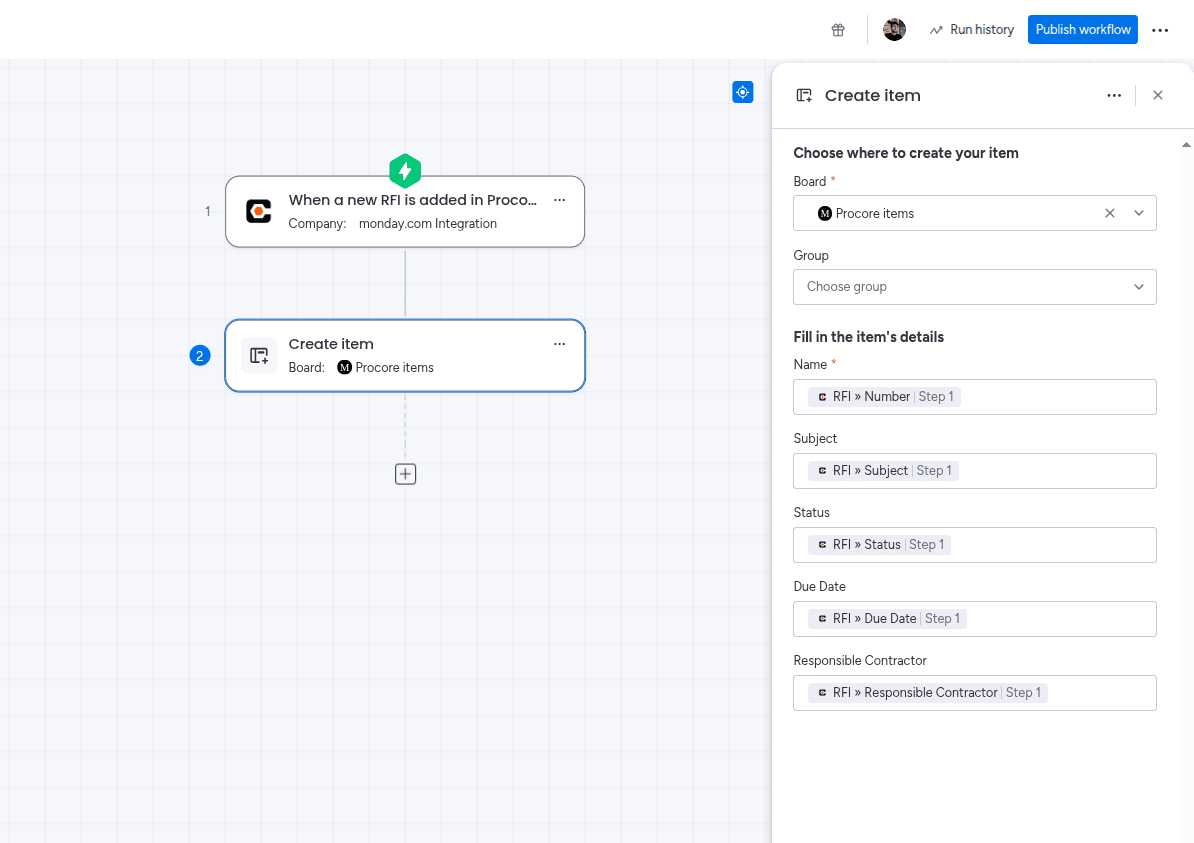
- Now let's build an automation from the Automations section. Navigate to the "Automate" section on a board and choose to create a new automation from scratch. Next, choose the Procore Integration trigger and action to add them to your automation.
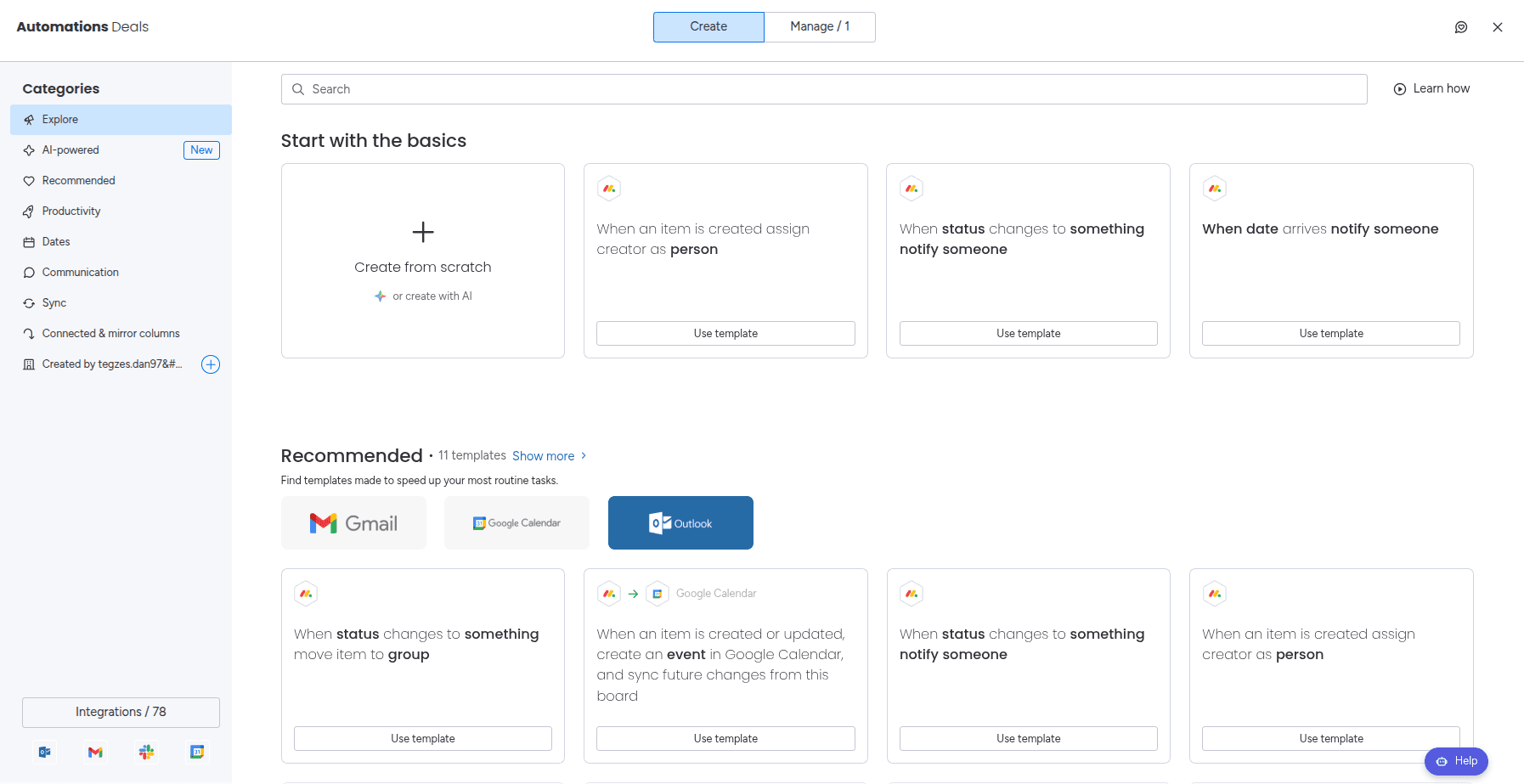
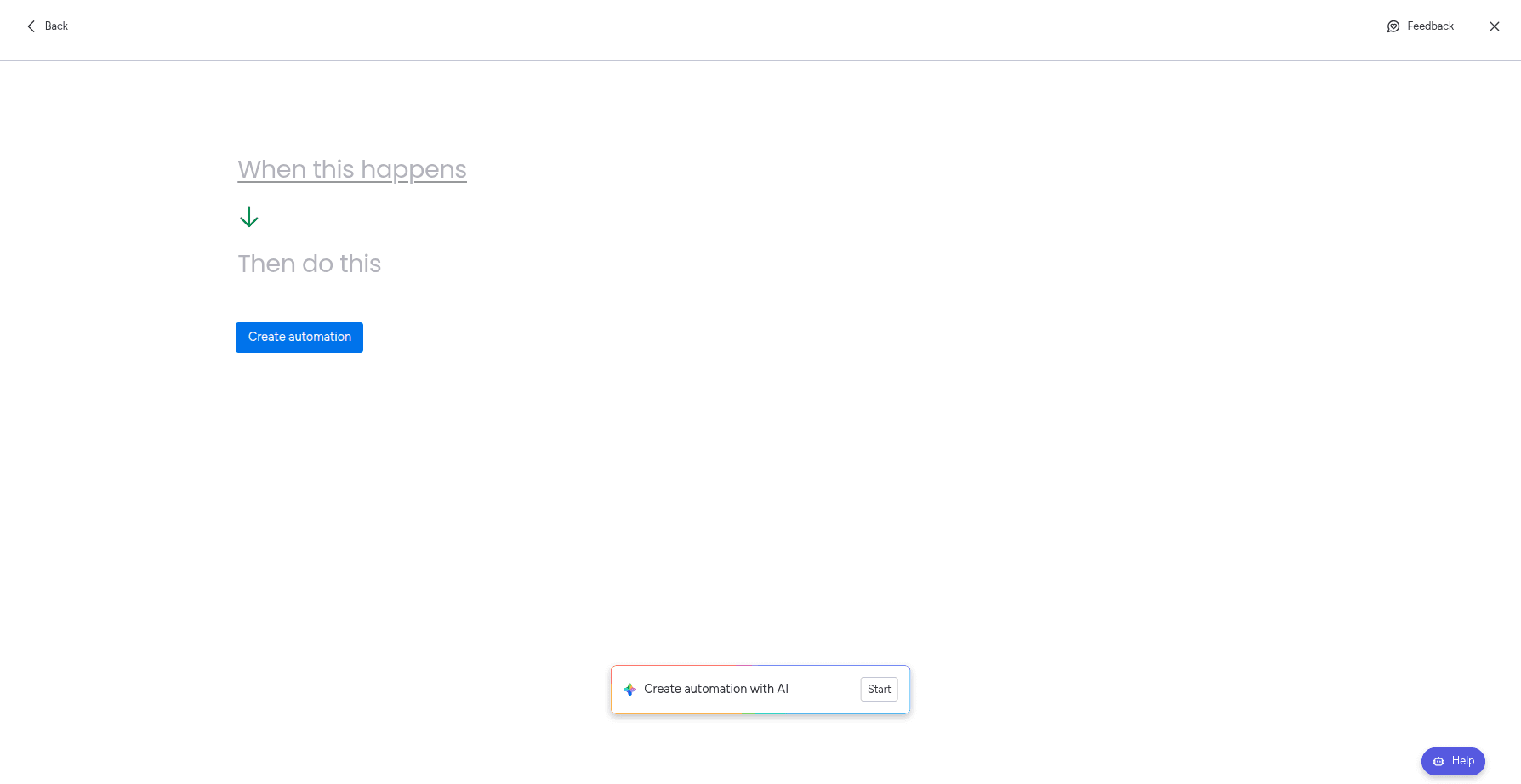
Now add the Procore trigger and action to your automation. Then configure the action by choosing the board where you want to create items and mapping the fields to values from the trigger. For now, the app can map those values only into monday.com text columns. After you finish configuring the automation, click "Create automation". 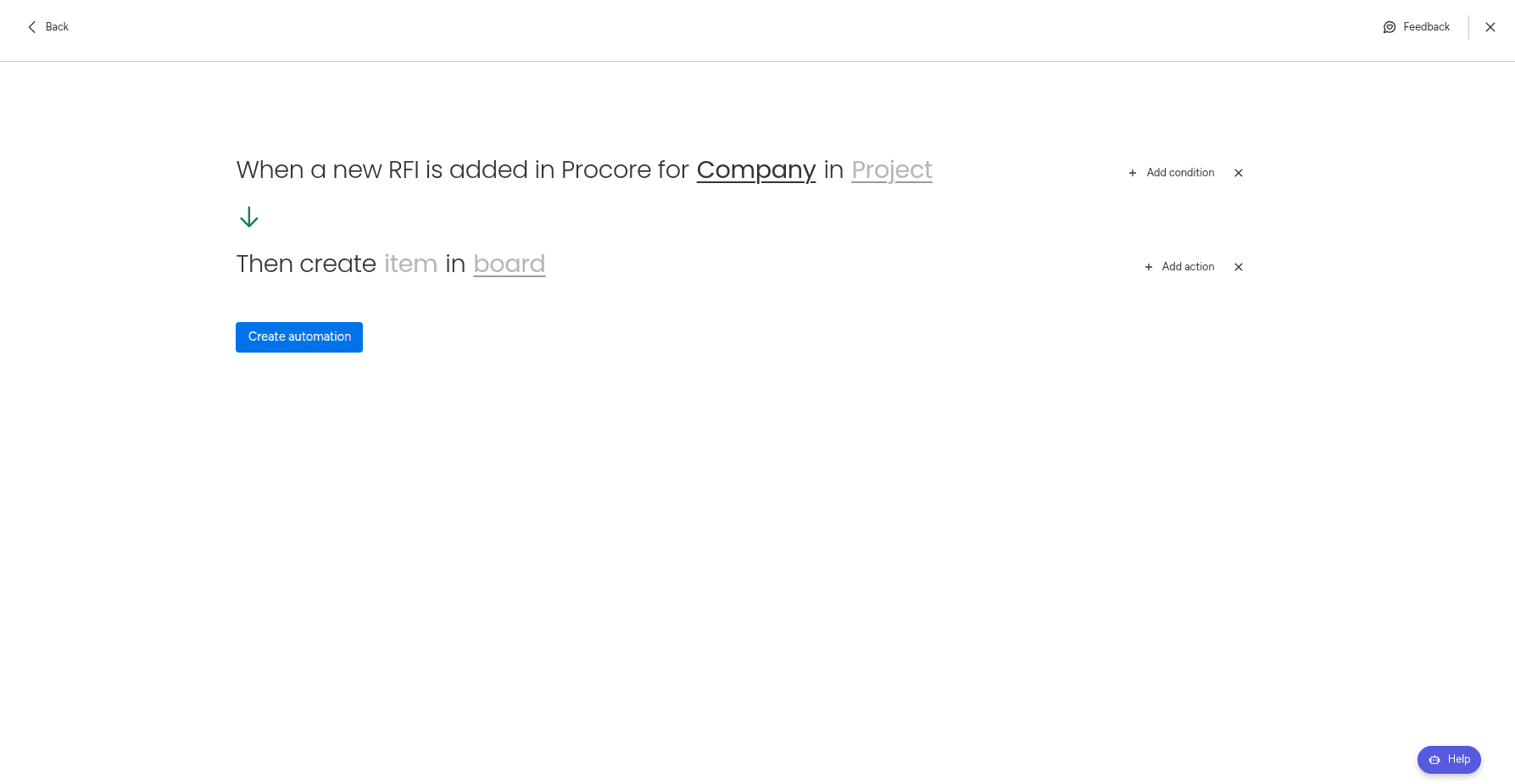
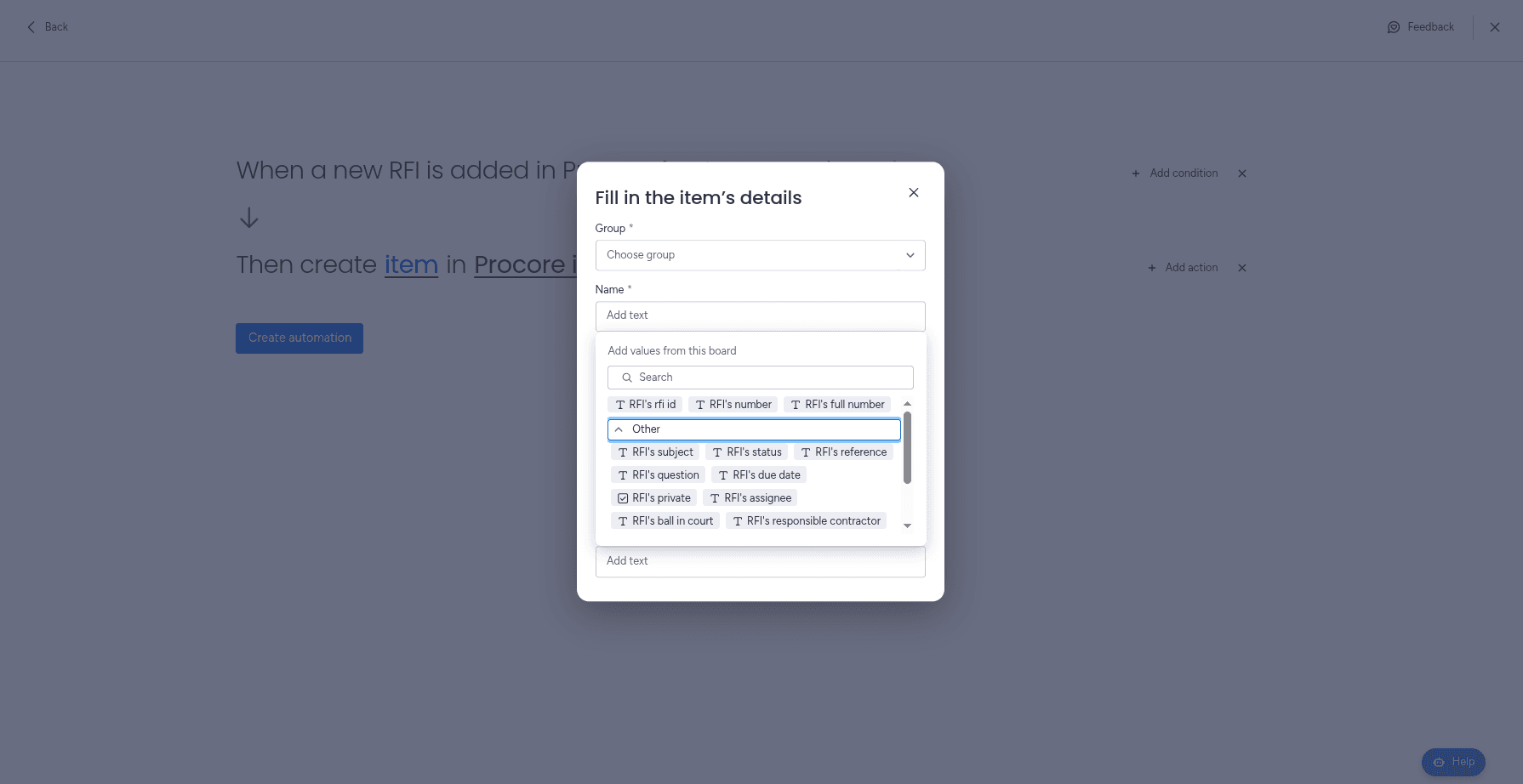
In this example, we will use the trigger "When a new RFI is created" and the action "Create an item".
This trigger will run every time a new RFI is created in Procore, and the action will create an item in the chosen board for each new RFI.
Support Media
Here are some helpful resources to get you started with the Procore Integration app: