
How to Connect Apollo to monday.com (Step-by-Step Guide)
If you’re using Apollo for outbound sales and monday.com for project or pipeline management, an integration can reduce manual data entry. This guide shows how to import Apollo records into monday.com, map their fields, and schedule imports.
Why Integrate Apollo with monday.com?
By default, Apollo and monday.com don’t deeply sync with each other. That creates friction like:
- Manually copying leads between platforms
- Losing track of outreach activity
- Disconnected sales and operations workflows
With a proper integration, you can:
- Automatically send Apollo leads into monday.com
- Sync contact and deal data in real time
- Trigger workflows when leads are updated
- Keep your entire team aligned across sales and operations
Integration Methods (Compared)
There are three main ways to connect Apollo to monday.com:
1. Native Integration
No robust native integration currently exists between Apollo and monday.com. Direct syncing is limited or non-existent.
2. Third-Party Automation Tools (Zapier, Make)
- ✓ Easy to set up for simple workflows
- ✗ Limited customization
- ✗ Can become expensive at scale
- ✗ Slower sync speeds
3. Dedicated monday.com Integration App for repeatable imports
- ✓ Built specifically for this use case
- ✓ Real-time or near real-time syncing
- ✓ Advanced field mapping
- ✓ Scalable for growing teams
This guide focuses on this method.
Step-by-Step: Connect Apollo to monday.com
1Install the Integration App
- Go to the monday.com Marketplace
- Search for “Apollo Data Importer”
- Click Install and follow the prompts
2Connect Your Apollo Account
- Authenticate your Apollo account via API key
- Grant necessary permissions (contacts, leads, accounts)
3Choose What to Sync
Decide which data flows into monday.com:
Also, here you decide the Target board, how you want to import (as items or as groups), and the import type (import only new records, update existing records, or both).
4Map Fields
Match Apollo fields to monday.com columns:
| Apollo Field | monday.com Column |
|---|---|
| Name | Name column |
| Email column | |
| Company | Text / Link column |
| Status | Status column |
💡 Tip: Proper field mapping is critical for clean automation later.
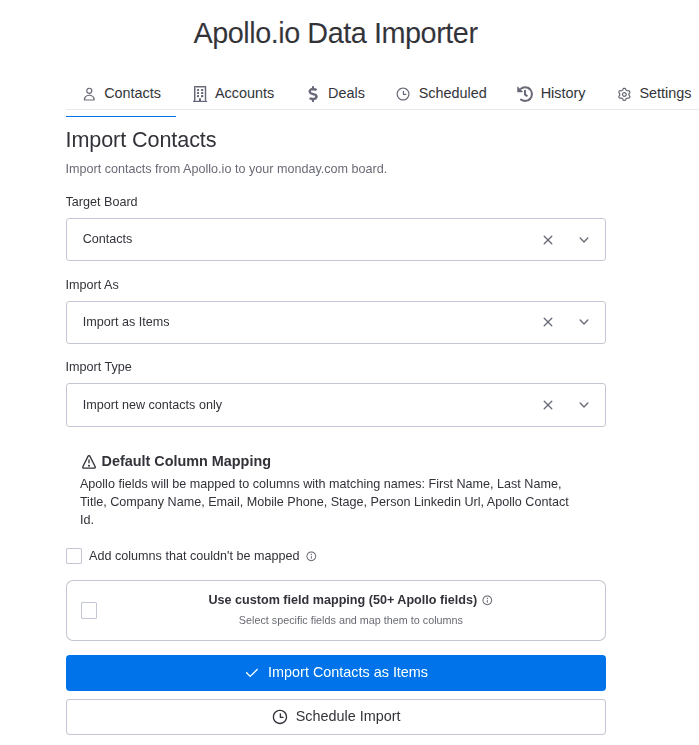
By default, the app provides a basic column mapping, which includes common fields, depending on the data type you choose to sync. Example: First Name, Last Name, Title, Company Name, Email, Stage etc. If you want to add missing columns to the board, check the “Add columns that could not be mapped” checkbox. The app will automatically add the extra columns in the board.
You also have the option to customize the mapping by clicking on the “Use custom field mapping” button. This will open a new section where you can manually map each Apollo field to a specific monday.com column.
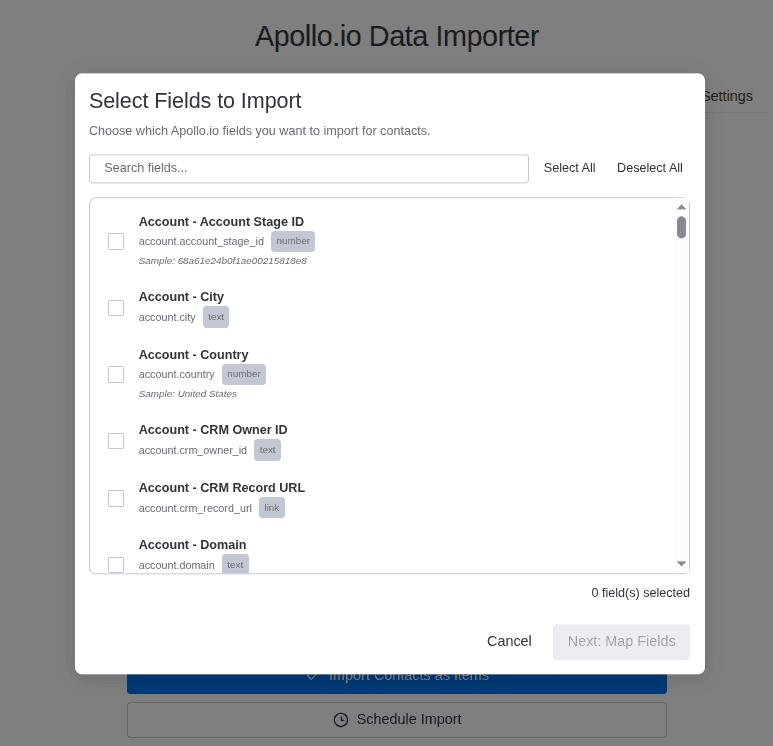
This is the custom fields mapping view. Here you can manually map each Apollo field to a specific monday.com column. IF the column is not in the board yet, you can add it manually from here.
5Set Automation Rules
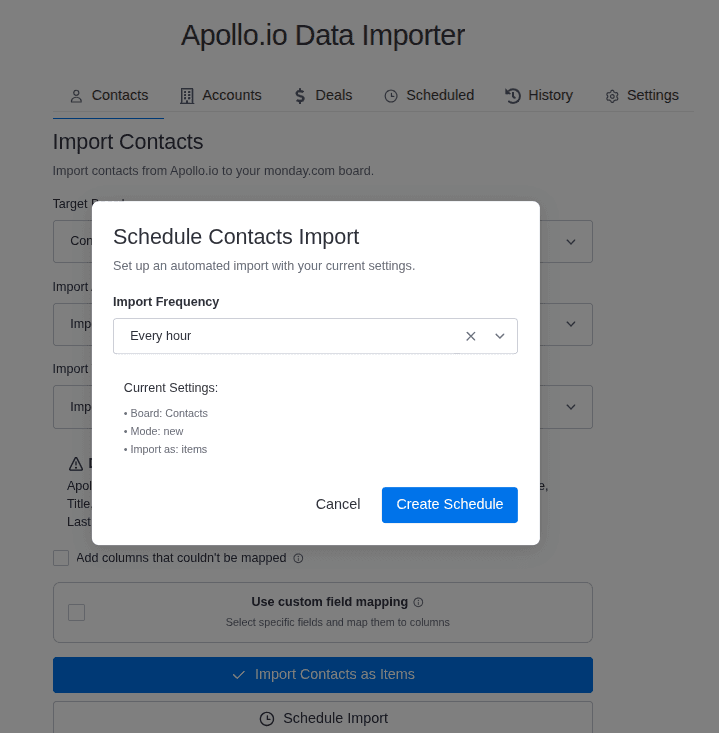
You can also schedule imports to run automatically at specific intervals (hourly, daily, weekly). Go to the Schedule tab, set up your preferred schedule, and save the settings.
6Test the Integration
- Create a test lead in Apollo
- Confirm it appears correctly in monday.com
- Check field accuracy and formatting
Common Use Cases
Lead Management Pipeline
Push Apollo leads directly into monday.com boards and track progress through stages.
Sales + Ops Alignment
Sales works in Apollo while operations works in monday.com, using the same imported records.
Automated Follow-Ups
Trigger tasks in monday.com when leads are created and assign reps automatically.
Reporting & Visibility
Build dashboards in monday.com using Apollo data to track performance across campaigns.
Why Use a Dedicated Integration Instead of Zapier?
| Feature | Zapier / Make | Dedicated Integration |
|---|---|---|
| Speed | Slower | Faster |
| Customization | Limited | Advanced |
| Cost at scale | High | More efficient |
| Reliability | Medium | High |
Choose a dedicated app when its field mapping and import options match your process. Zapier or Make may be enough for a small, simple workflow.
Best Practices
To get the most out of your Apollo–monday.com integration:
- Keep field mapping simple and consistent
- Use status columns for automation triggers
- Avoid syncing unnecessary data
- Test workflows before scaling
- Build dashboards early for visibility
Frequently Asked Questions
Does Apollo integrate with monday.com?
Not natively in a robust way. You'll need a third-party tool or a dedicated integration app like the Apollo Data Importer from the monday.com Marketplace.
What's the easiest way to connect Apollo to monday.com?
Using a dedicated monday.com integration app is the simplest and most scalable method.
Can I sync leads automatically?
Yes. You can automatically send new Apollo leads into monday.com in real time using the Apollo Data Importer.
Can I update data both ways?
This depends on the integration you use. Advanced integrations support two-way syncing.
Is Zapier enough?
For simple workflows, yes. For scaling teams, it often becomes limiting and expensive.
Final Thoughts
Start with the records your team needs in monday.com, map only the fields you use, and test an import before scheduling it. That keeps the board useful without filling it with unnecessary data.
Explore More monday.com Integration Guides
If you’re also using other tools alongside monday.com, check out our step-by-step guides:
Ready to connect Apollo and monday.com?
Install the Apollo Data Importer from the monday.com Marketplace and start automating your sales workflow today.
Install Apollo Data Importer