
How to Integrate Pipedrive with monday.com (Step-by-Step Guide)
If you’re using Pipedrive to manage your sales pipeline and monday.com to track operations or workflows, you’ve probably felt the friction of switching between tools. The good news? You can connect them. In this guide, you’ll learn how to integrate Pipedrive with monday.com, the best method to do it, and how to automate your sales workflows.
Why Integrate Pipedrive with monday.com?
Pipedrive is great for managing deals and pipelines, while monday.com excels at workflows, automation, and team collaboration. But without integration, you get:
- Manual data entry between tools
- Misaligned teams (sales vs operations)
- Limited visibility into deal progress
With an integration, you can:
- Sync deals and contacts automatically
- Track pipeline progress inside monday.com
- Trigger workflows based on deal stages
- Create Deals, Leads, or Activities in Pipedrive from monday.com
Integration Methods (Compared)
1. Native Integration
- ⚠ Basic functionality only
- ✗ Not maintained properly
- · Limited customization
- · Not ideal for scaling workflows
2. Third-Party Tools (Zapier, Make)
- ✓ Easy setup
- ✗ Task-based pricing
- ✗ Limited logic
- ✗ Potential delays
3. Dedicated monday.com Integration App for Pipedrive-specific workflows
- ✓ Built for CRM workflows
- ✓ Real-time syncing
- ✓ Advanced field mapping
- ✓ Scales with your pipeline
This is the recommended approach.
Step-by-Step: Connect Pipedrive to monday.com
1Install the Integration App
- Go to the monday.com Marketplace
- Search for “PipedrivePlus”
- Install the app
2Getting started in a workflow
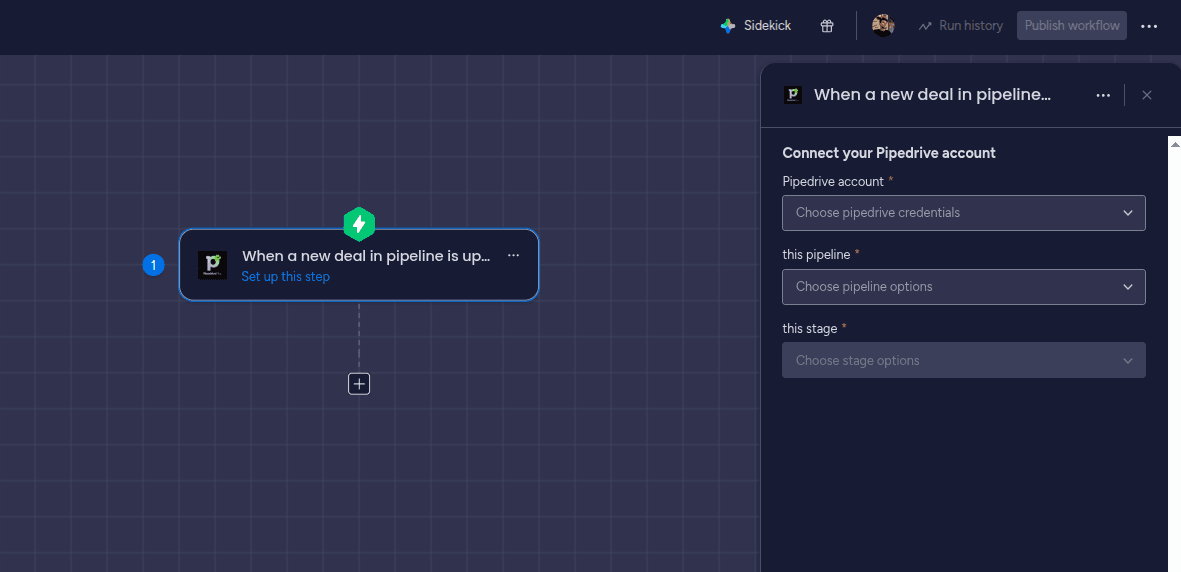
Start new workflow and add PipedrivePlus trigger. You can find the trigger by searching for it in the triggers section.
3Configure the trigger
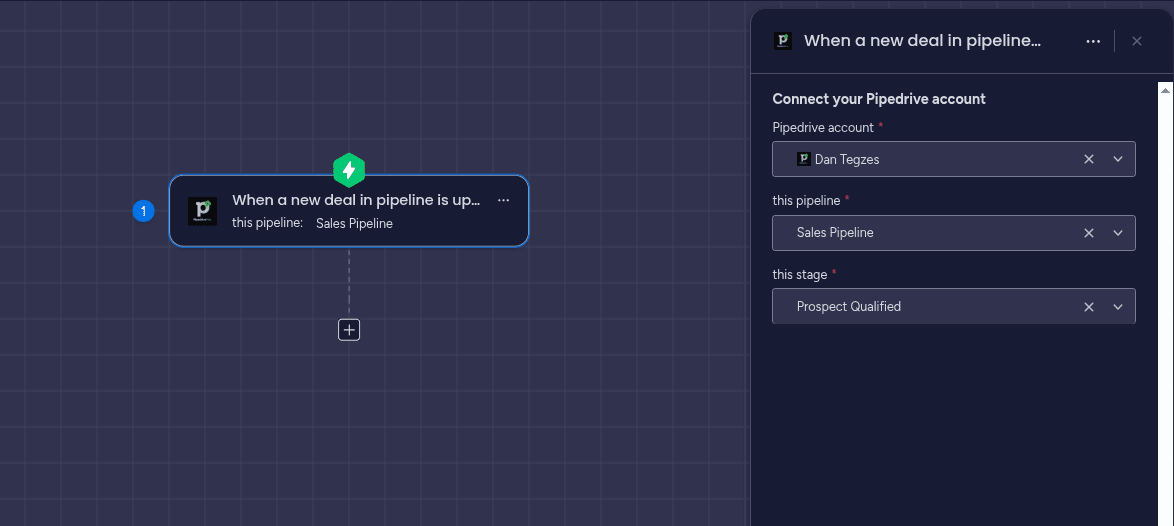
Configure the trigger with your account, pipeline and stage. You will be asked to authorize the app and connect your Pipedrive account if you haven t done it already.
- Log into your Pipedrive account
- Authorize access to deals, contacts, and organizations
4Add an Action
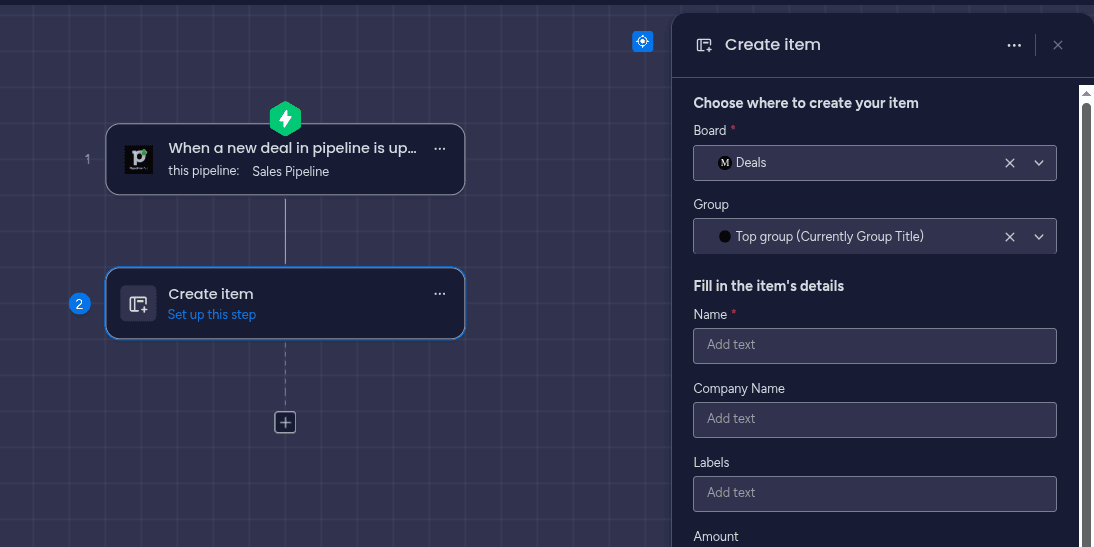
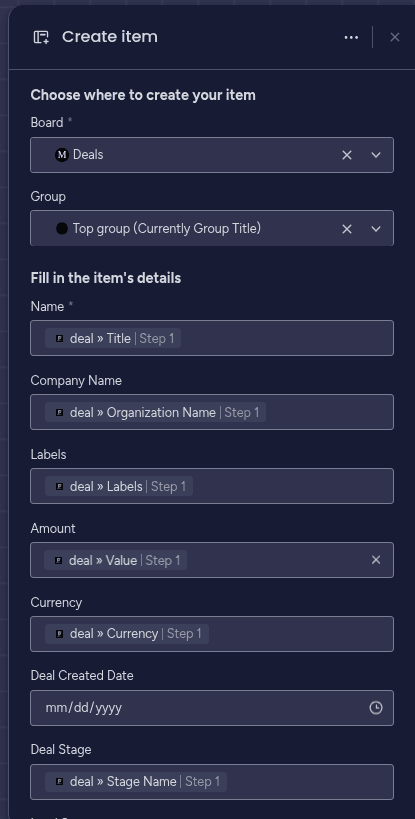
After you configured the trigger, you can add the action to your workflow. You can find the action by searching for it in the actions section. Once you add the action, you will have to choose a board and also choose the Pipedrive fields from the trigger.
5Map Fields Between Platforms
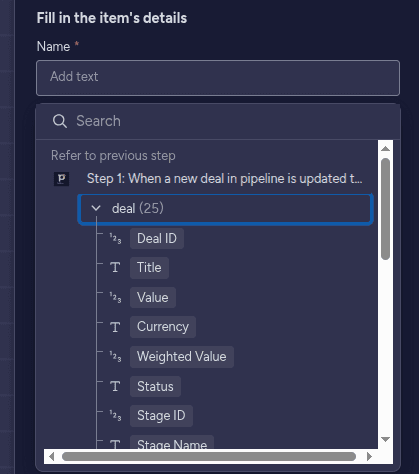
After you choose the board, you can map the columns with the Pipedrive specific fields. The values from these fields will be used when creating your items.
Example mappings:
| Pipedrive Field | monday.com Column |
|---|---|
| Deal Title | Name column |
| Deal Value | Numbers column |
| Stage | Status or Text column |
| Owner | People column |
| Close Date | Date column |
💡 Clean field mapping ensures accurate automation and reporting.
6Set Automation Rules
Common triggers:
- New deal created → Create item in monday.com
- When Deal won → Create item in this board
- When column changes → Create Lead in Pipedrive
- When a new Activity is created in Pipedrive → Create item in monday.com
- When Deal Stage gets updated to Qualified → Create item in this board
7Test the Integration
- Create a test deal in Pipedrive
- Confirm it appears in monday.com
- Check field accuracy and automation behavior
Common Use Cases
Sales Pipeline Visibility
Sync all deals into monday.com and build dashboards for real-time tracking.
Sales → Operations Handoff
When a deal is marked “won” in Pipedrive, automatically create a project in monday.com.
Activity Tracking
Sync calls, emails, and meetings to keep full visibility across teams.
Automated Task Creation
Assign onboarding tasks when deals close and trigger internal workflows instantly.
Why Use monday.com with Pipedrive?
Instead of replacing one tool, many teams combine them:
| Function | Best Tool |
|---|---|
| Sales pipeline management | Pipedrive |
| Workflow automation | monday.com |
| Reporting & dashboards | monday.com |
| Task coordination | monday.com |
Integration allows both tools to complement each other.
Why Not Just Use Zapier?
Zapier works for simple automations, but:
- Costs increase with volume
- Limited customization
- Slower execution
- Harder to maintain at scale
A dedicated integration offers more control and reliability.
Best Practices
To get the most out of your Pipedrive–monday.com integration:
- Sync only essential fields
- Use consistent deal stage naming
- Automate handoffs between teams
- Test workflows before scaling
- Build dashboards early
Frequently Asked Questions
Does Pipedrive integrate with monday.com?
Yes, but native integrations are limited. Most teams use third-party or dedicated integration apps for deeper workflows.
Can I sync deals automatically?
Yes. Deals can be automatically synced and updated in monday.com.
Can I trigger workflows from deal stages?
Yes. For example, when a deal is marked "won," you can trigger onboarding workflows.
Is two-way sync possible?
Advanced integrations support two-way syncing between platforms.
What's the best way to integrate Pipedrive with monday.com?
A dedicated monday.com integration app is the most scalable solution.
Final Thoughts
Start with the deal stages and fields your operations team needs. Map those values to a test board before using the workflow for active deals.
Explore More monday.com Integration Guides
Need to connect other tools with monday.com? Check out our related guides:
Sync leads and contacts from Apollo into monday.com to keep your outbound sales records current.
Bridge project management with workflow automation by connecting Asana tasks to monday.com boards.
Ready to connect Pipedrive and monday.com?
Install PipedrivePlus from the monday.com Marketplace and start automating your sales pipeline today.
Install PipedrivePlus