
How to Integrate Procore with monday.com (Step-by-Step Guide)
Procore runs the jobsite. monday.com runs everything around it — scheduling, approvals, reporting, and the teams who never open Procore at all. This guide covers how to connect the two platforms, which Procore records you can bring across, and why the setup is shorter than it is for most construction tools.
Why Integrate Procore with monday.com?
Procore is where construction records live: RFIs, Punch Items, Inspections, Submittals. monday.com is where a lot of the surrounding coordination happens. When the two are not connected, you get:
- New RFIs that nobody outside the project team sees until someone asks
- Punch Items tracked in a spreadsheet alongside the ones in Procore
- Status meetings that start with a manual export
- Stakeholders given Procore seats purely so they can read four fields
With an integration, you can:
- Surface Procore activity on the boards your wider team already works in
- Trigger monday.com automations whenever a new construction record is created
- Report across projects using monday.com dashboards, without pulling anyone into Procore
- Keep Procore as the system of record while visibility travels outward
Integration Methods (Compared)
Procore is a clear case, because there are only really three routes:
1. Manual Entry and Exports
- ✓ No setup required
- ✗ Someone owns a recurring copy-paste job
- ✗ The board is stale the moment it is built
- · Falls apart across multiple concurrent projects
2. Third-Party Tools (Zapier, Make)
- ✓ Connects the two platforms
- ✗ Task-based pricing that grows with jobsite volume
- ✗ A third account to administer and pay for
- ✗ Project data passes through an extra system
3. Procore Integration the only native option
- ✓ The only native monday.com integration for Procore
- ✓ No middleware account to buy or maintain
- ✓ Covers RFIs, Punch Items, Inspections, and Submittals
- ✓ Configured alongside your other monday.com automations
This is the recommended approach.
Every other route between Procore and monday.com goes through a general-purpose automation tool. That is the practical difference: with a native app there is no third platform sitting between your jobsite records and your boards.
What You Can Sync
Four Procore record types can trigger a monday.com automation. Each one creates an item on the board you choose:
| Procore Record | Typical monday.com Use |
|---|---|
| RFI | Track open questions and response times on a project board |
| Punch Item | Monitor closeout work across several projects at once |
| Inspection | Follow inspection activity from a central workspace |
| Submittal | Organize and review new submittals as they arrive |
The flow runs from Procore into monday.com. Procore stays the system of record for construction data, and monday.com becomes the place where everyone else can see and act on it.
Step-by-Step: Connect Procore to monday.com
You need a monday.com account and a Procore account. The whole setup takes about ten minutes.
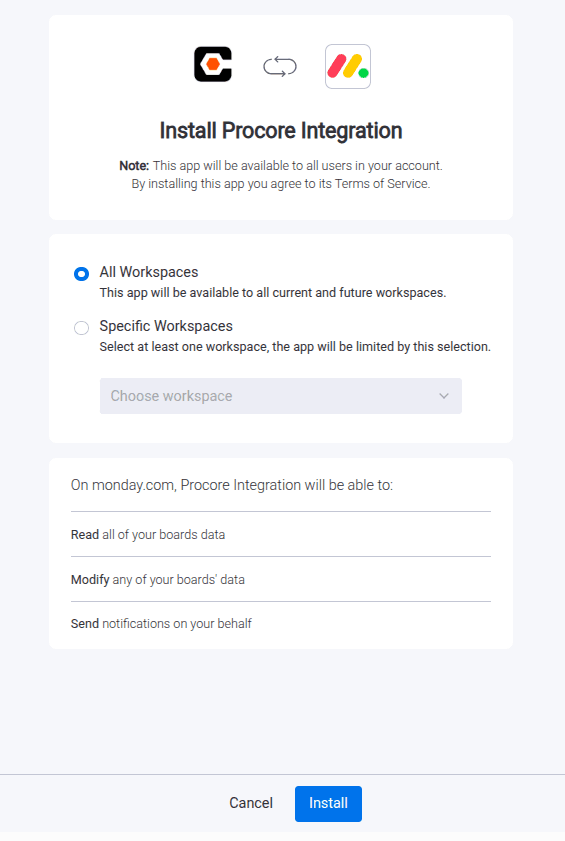
1Install the Integration App
- Go to the monday.com Marketplace
- Search for “Procore Integration”
- Install the app
2Authorize monday.com
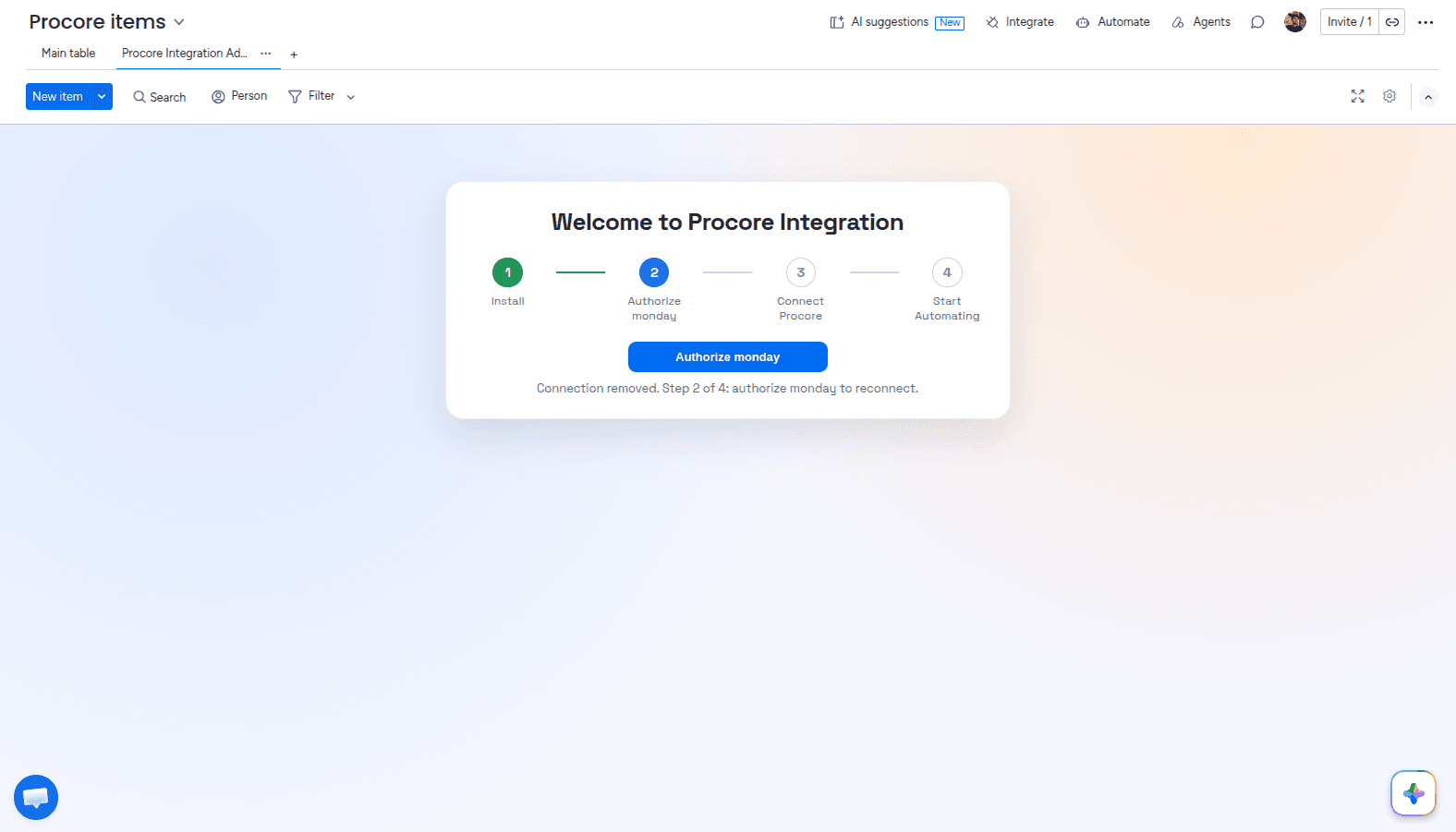
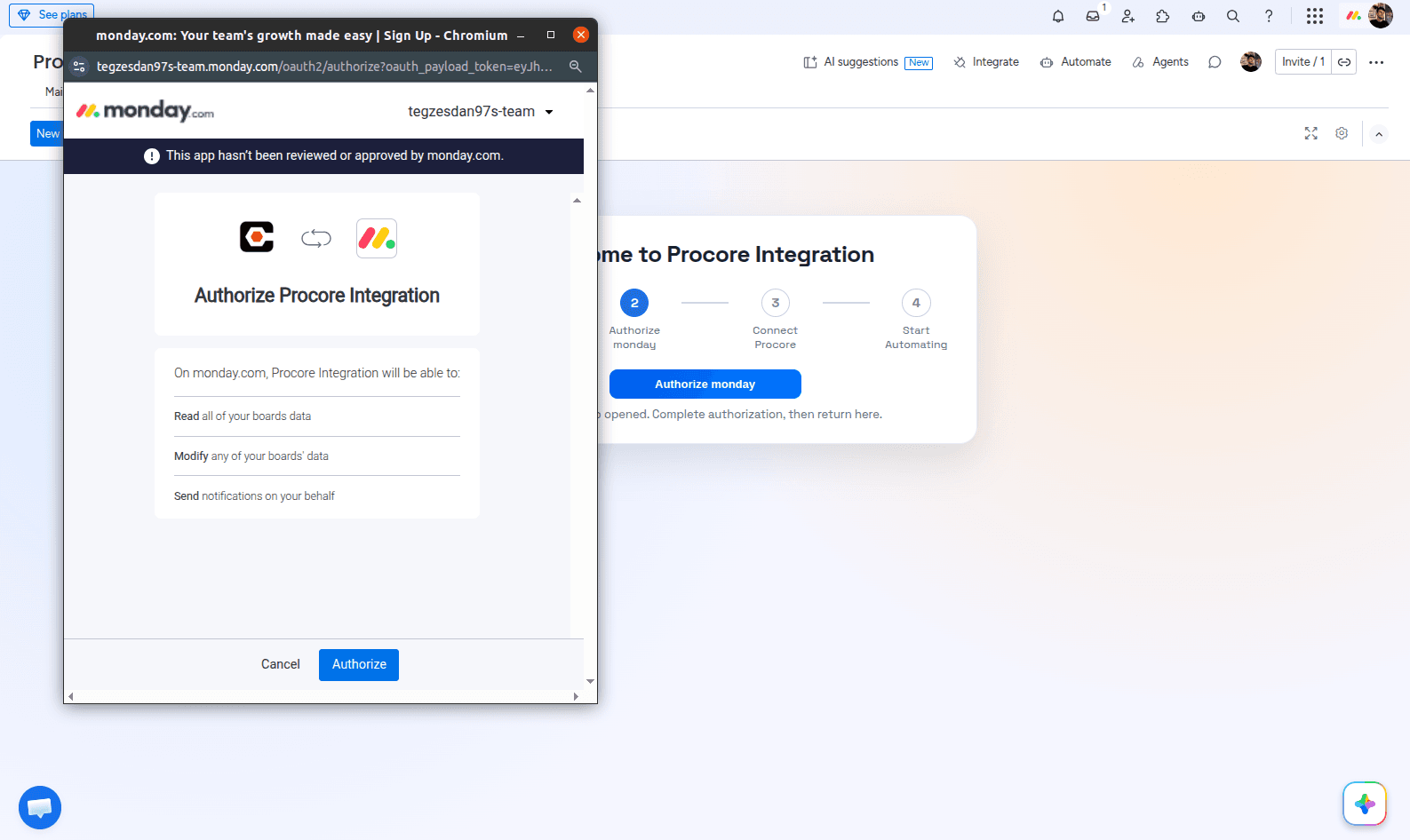
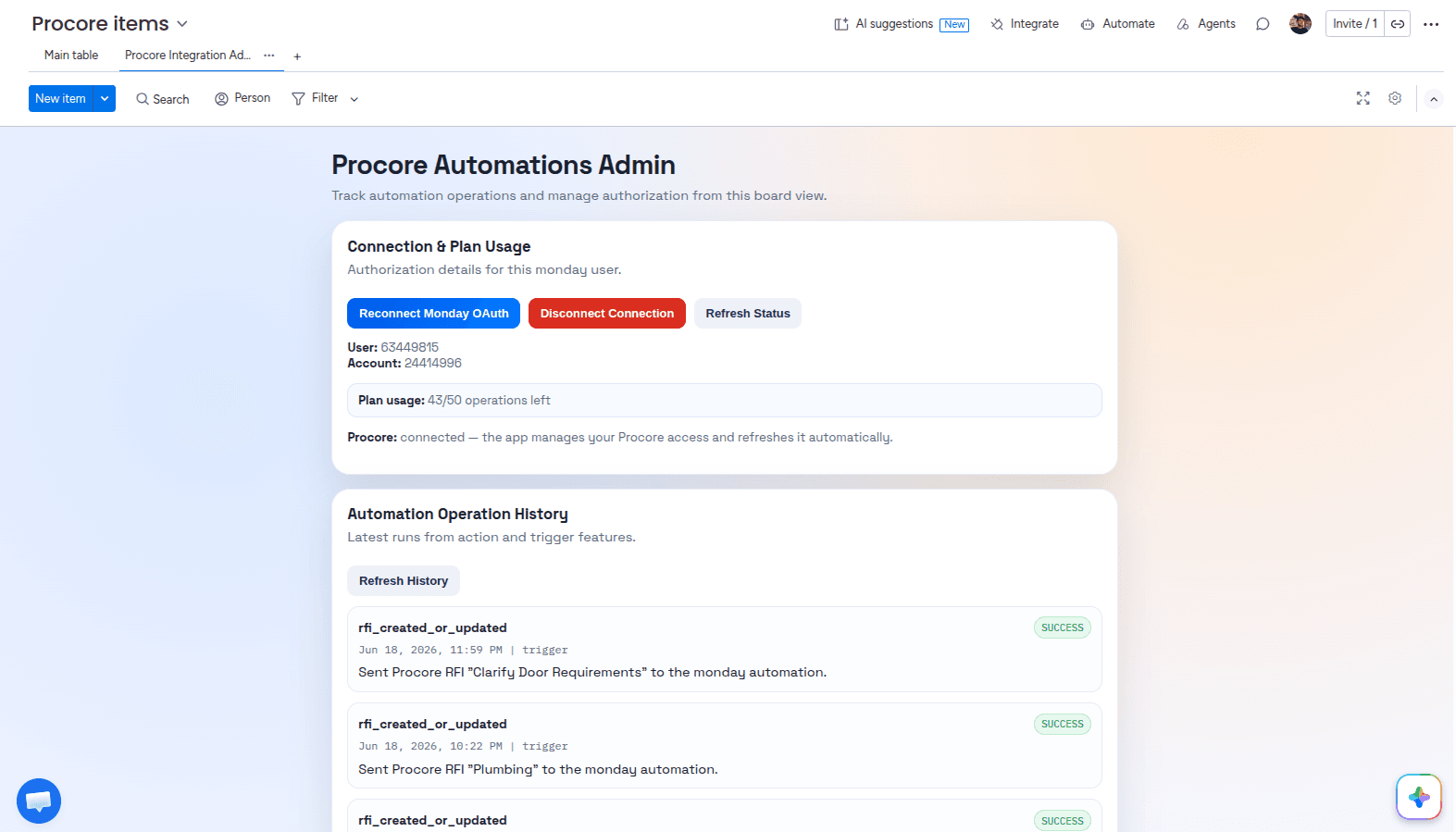
After installing, you land on the Admin UI. Click Authorize monday to open the authorization pop-up, confirm, and you are returned to the Admin UI.
3Connect Your Procore Account
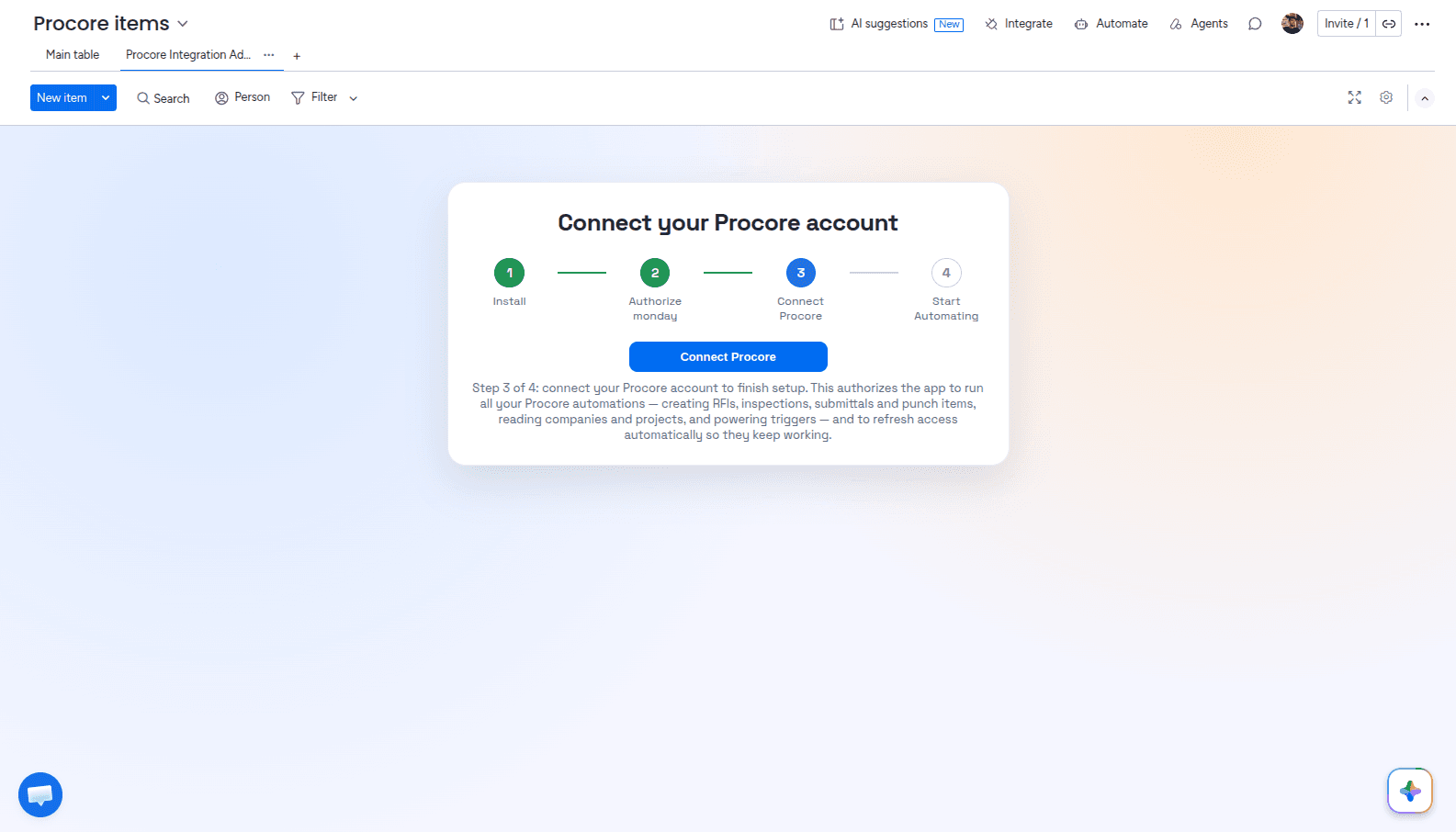
Click Connect Procore to open the Procore authorization page. Once you approve access, you are redirected back to the Admin UI, where you can see your connections, plan usage, and automation operations history.
4Add a Procore Trigger
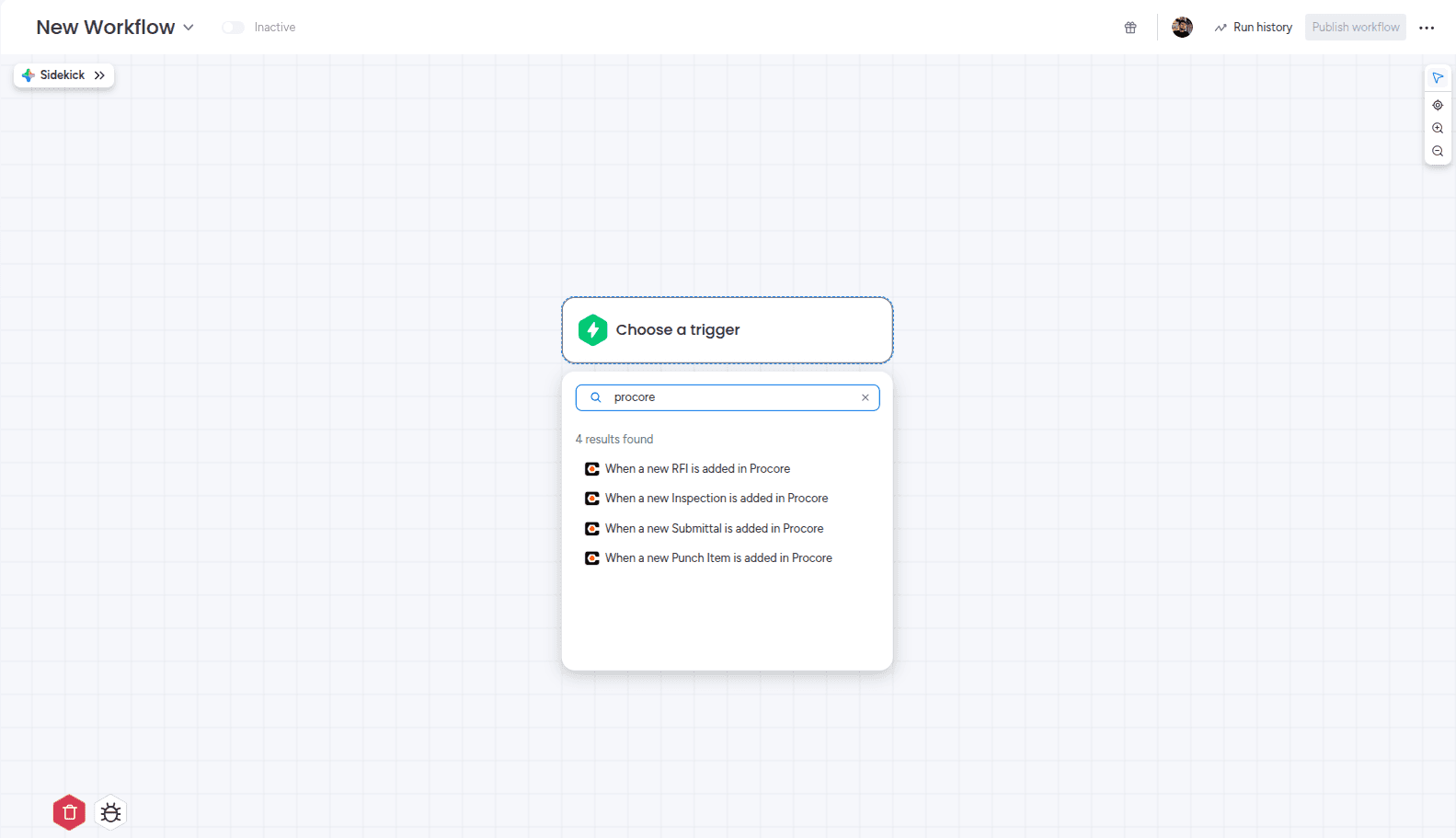
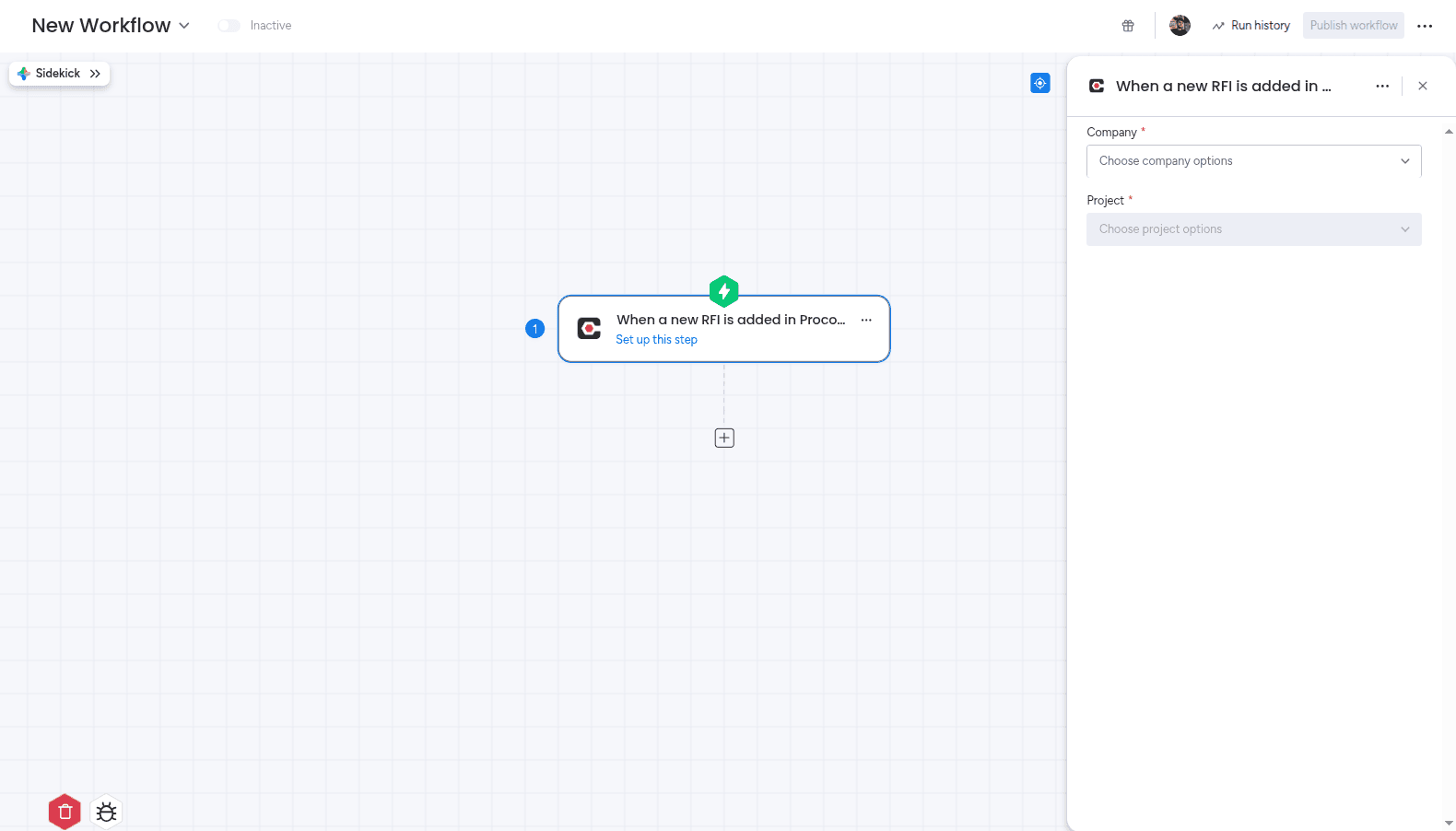
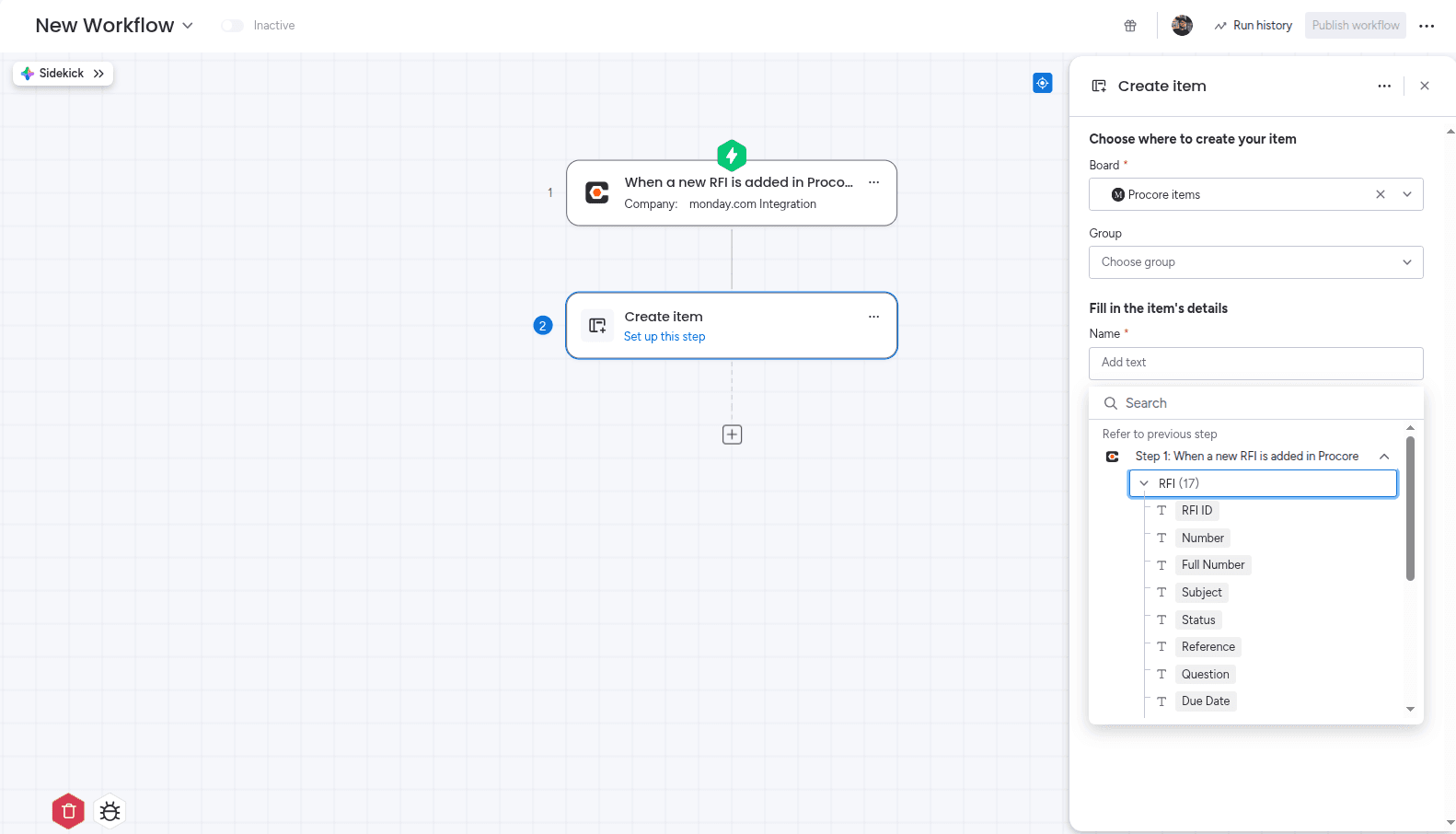
Start a new workflow and search the Triggers section for Procore. Pick the record type you want to watch — for example, when a new RFI is created. No extra configuration is needed on the trigger itself.
5Add an Action
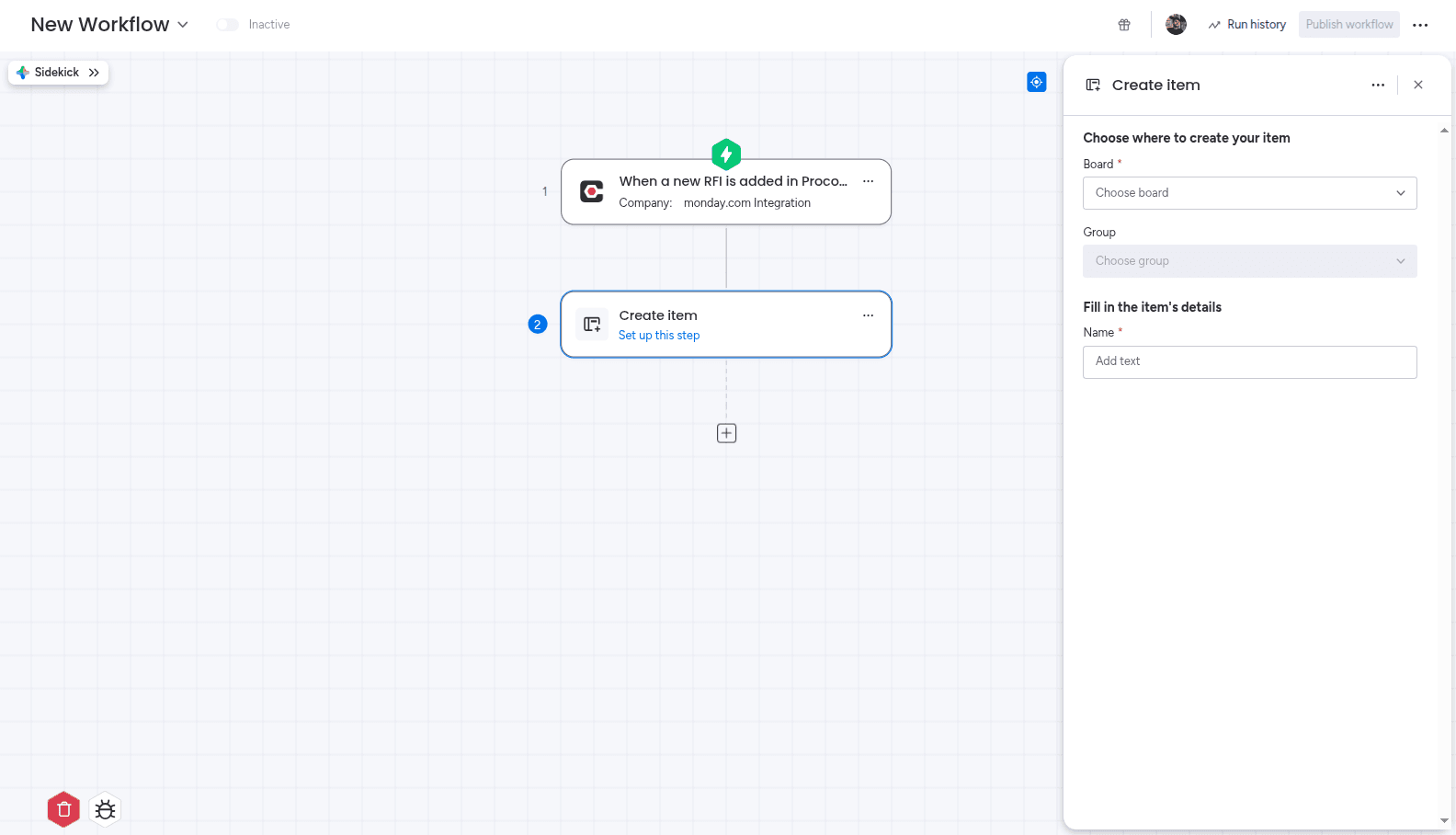
Search the Actions section for the action you want — commonly “Create item” — then choose the board it should write to.
6Map Fields Between Platforms
Set your board up first. Procore values currently map into monday.com text columns only. Add a text column for each Procore field you want to bring across before you configure the action.
Map your board columns to Procore fields. These values populate each item the automation creates.
Example mappings for an RFI board:
| Procore Field | monday.com Column |
|---|---|
| RFI subject | Name column |
| RFI number | Text column |
| Project | Text column |
| Status | Text column |
| Due date | Text column |
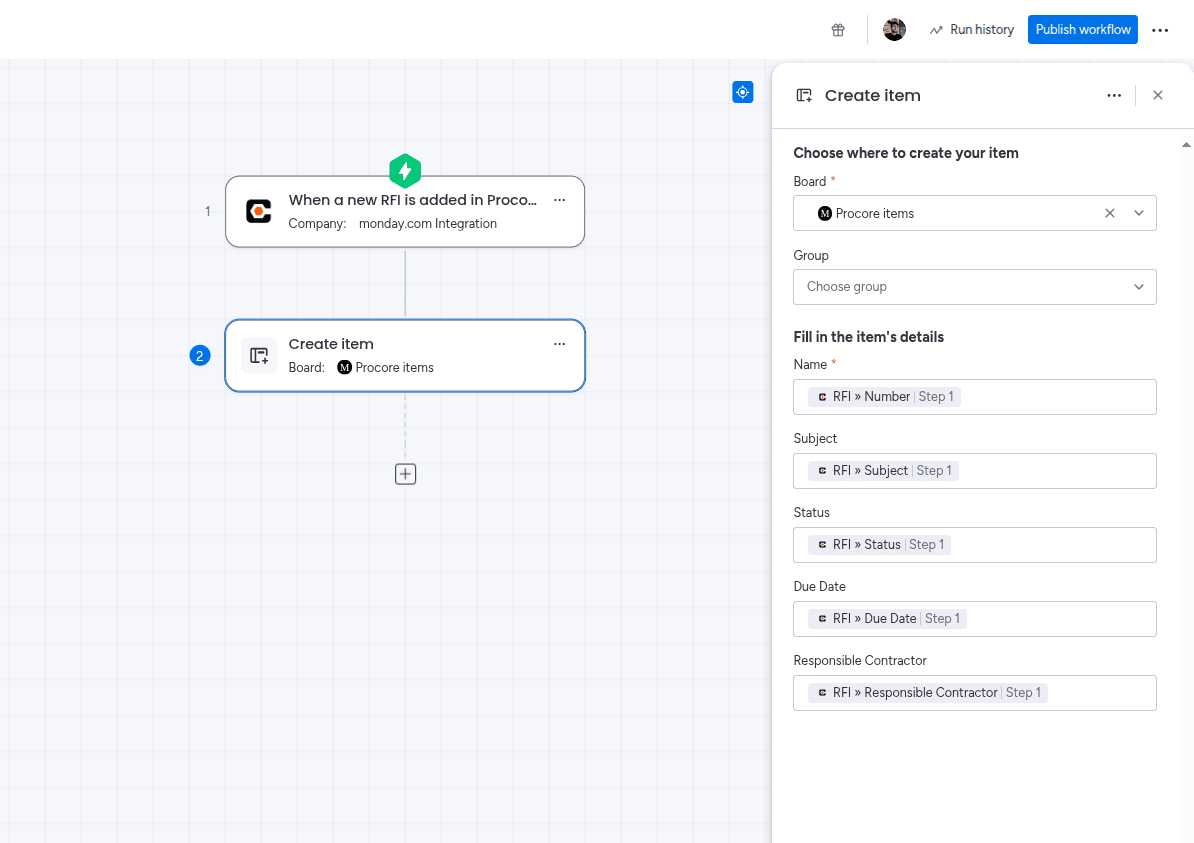
When the mapping is done, click Publish workflow to activate it.
7Test the Integration
- Create a test RFI or Punch Item in a Procore sandbox project
- Confirm the item appears on your monday.com board
- Check that each mapped column holds the value you expect
Run this against a test board before pointing the automation at a live job.
Building the Same Automation From a Board
Workflows are not the only route. You can build the same thing from a board’s Automations section, which is often more convenient when the automation only ever concerns that one board. Open Automate on the board, create an automation from scratch, then add the Procore trigger and action.
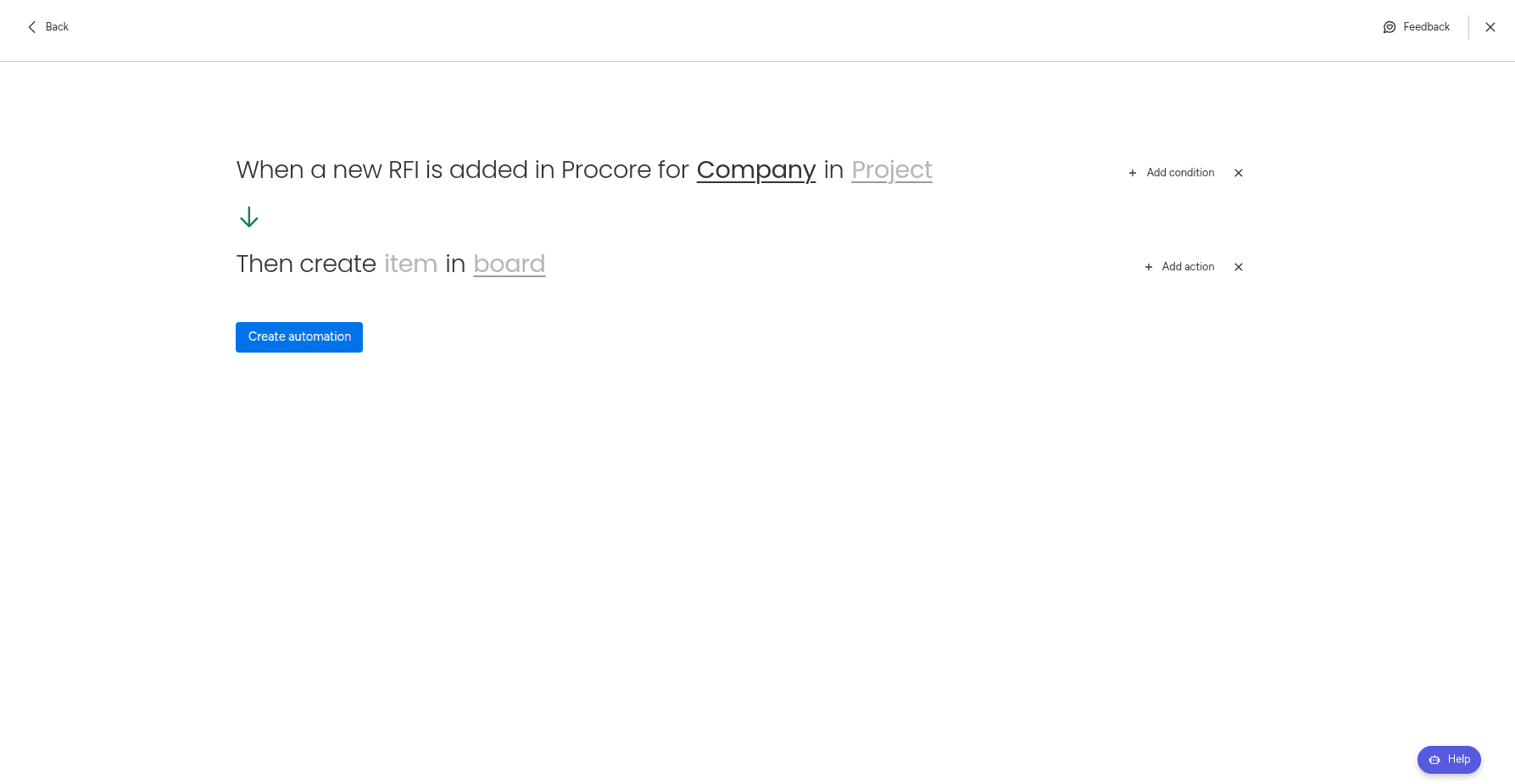
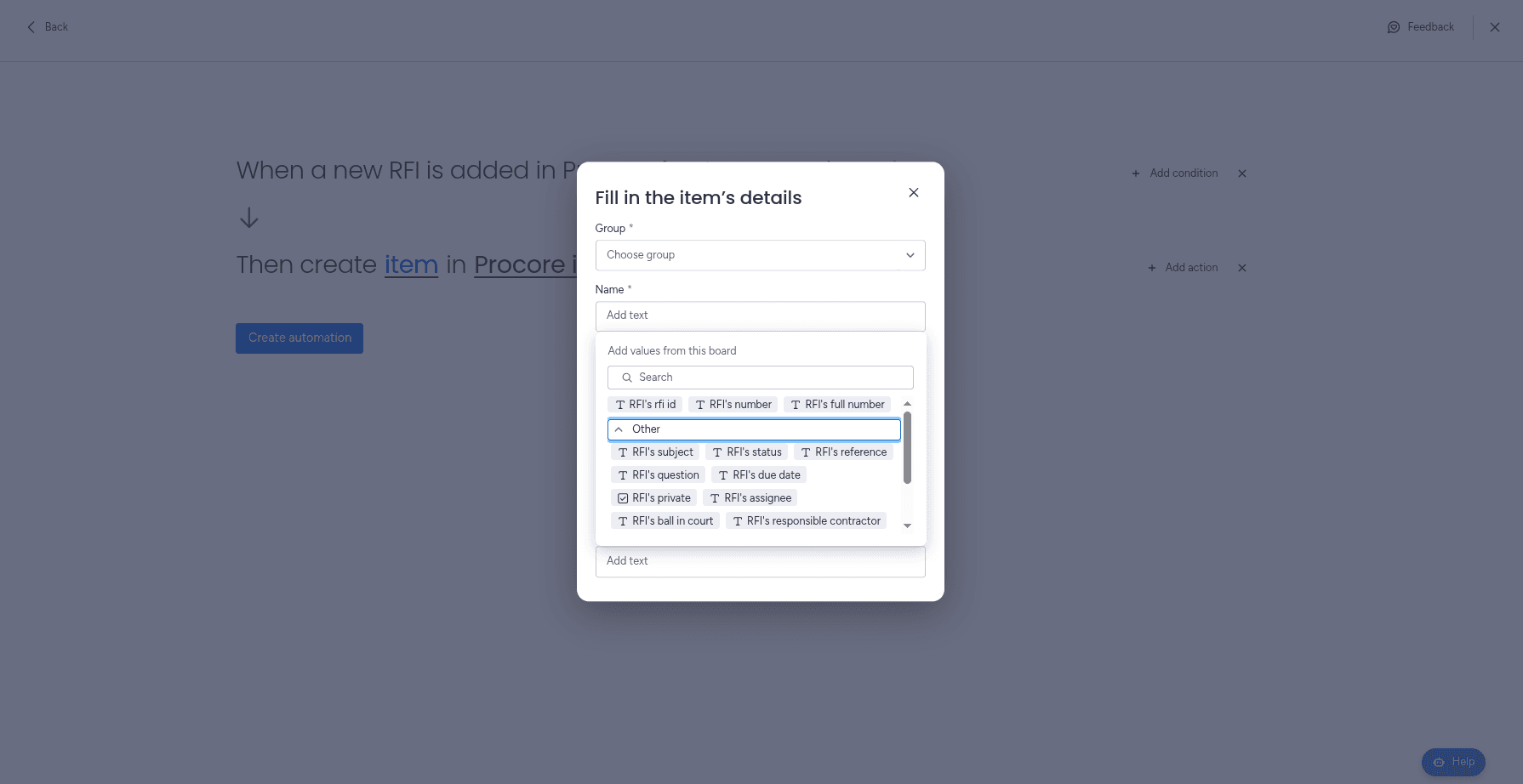
The field mapping works exactly as it does in a workflow, text columns included. Click Create automation when you are done. The full walkthrough of both routes is in the Procore Integration setup guide.
Common Use Cases
RFI Tracking
Every new RFI lands on the project board, so response times are visible to people who do not have a Procore seat.
Multi-Project Punch Lists
Point several project automations at one board to watch closeout work across an entire portfolio.
Inspection Follow-Up
New inspections create items that can drive notifications, owner assignment, and escalation rules in monday.com.
Submittal Review
Organize incoming submittals into a review queue with the statuses and approvals your team already uses.
Because each new record is an ordinary monday.com item, everything downstream is ordinary monday.com too: dashboards combining several Procore projects, notifications to a superintendent, escalation when an item sits too long, or weekly reporting to an owner who will never log into Procore.
Why Not Just Use Zapier?
Zapier and Make can both connect Procore to monday.com, and for a handful of records a month they work fine. The trade-offs show up as jobsite volume grows:
- Pricing is task-based, and every RFI and Punch Item is a task
- You maintain and pay for a third platform
- Project records travel through an extra system
- Debugging spans three tools instead of one
Because Procore Integration runs inside monday.com, the automation is configured in the same place as the rest of your board automations, and there is no per-task meter on it.
Best Practices
To get the most out of your Procore–monday.com integration:
- Start with one record type, usually RFIs, and add the others once it runs cleanly
- Create the text columns on your board before configuring the action
- Keep a dedicated construction board rather than mixing Procore items into delivery boards
- Include the Procore project name in the mapping if one board serves several projects
- Test on a sandbox board before automating a live job
Frequently Asked Questions
Does Procore integrate with monday.com?
Yes. Procore Integration is the only native monday.com integration for Procore. It is installed from the monday.com Marketplace and runs inside monday.com, so no middleware is involved.
Do I need Zapier to connect Procore and monday.com?
No. Every other way of connecting the two platforms routes through a general-purpose automation tool such as Zapier or Make. Procore Integration connects them directly.
What Procore records can I sync to monday.com?
RFIs, Punch Items, Inspections, and Submittals. When any of these is created in Procore, the integration can automatically create a matching item on the monday.com board you choose.
Does the integration sync back into Procore?
No. The integration brings Procore activity into monday.com so teams get visibility there. Procore remains the system of record for construction data.
Which monday.com columns can Procore data be mapped to?
Procore values currently map into monday.com text columns only. Set up the destination board with text columns for the Procore fields you want to bring across.
Can I track several Procore projects on one board?
Yes. You can build a separate automation per Procore project and point them all at the same monday.com board, which gives you a cross-project view of RFIs or Punch Items in one place.
Final Thoughts
Pick the record type your team currently chases hardest — for most contractors that is RFIs — and automate that one first. Get it landing correctly on a test board, then add Punch Items, Inspections, and Submittals one at a time.
Explore More monday.com Integration Guides
Need to connect other tools with monday.com? Check out our related guides:
Ready to connect Procore and monday.com?
Install Procore Integration from the monday.com Marketplace and give your whole team visibility into jobsite activity.
Install Procore Integration